Knowledge Base
Professional Email - Calendar Sharing
Calendar sharing lets you give your team, or specific people, access to one of your calendars in HostGator Professional Email. Shared calendars show up automatically in each person's Calendars list, and you choose the permission level for each person. You can only share a calendar with people who have a Professional Email account.
Log In to Professional Email Webmail
- Option 1: Access Webmail Through the HostGator Customer Portal ⤵
- Option 2: Access Webmail Directly ⤵
Option 1: Access Webmail Through the HostGator Customer Portal
- Log in to your Customer Portal.
- Click Email in the left-side navigation menu.
- Optional: If multiple Professional Email subscriptions are listed, click Manage for the plan you want to access.
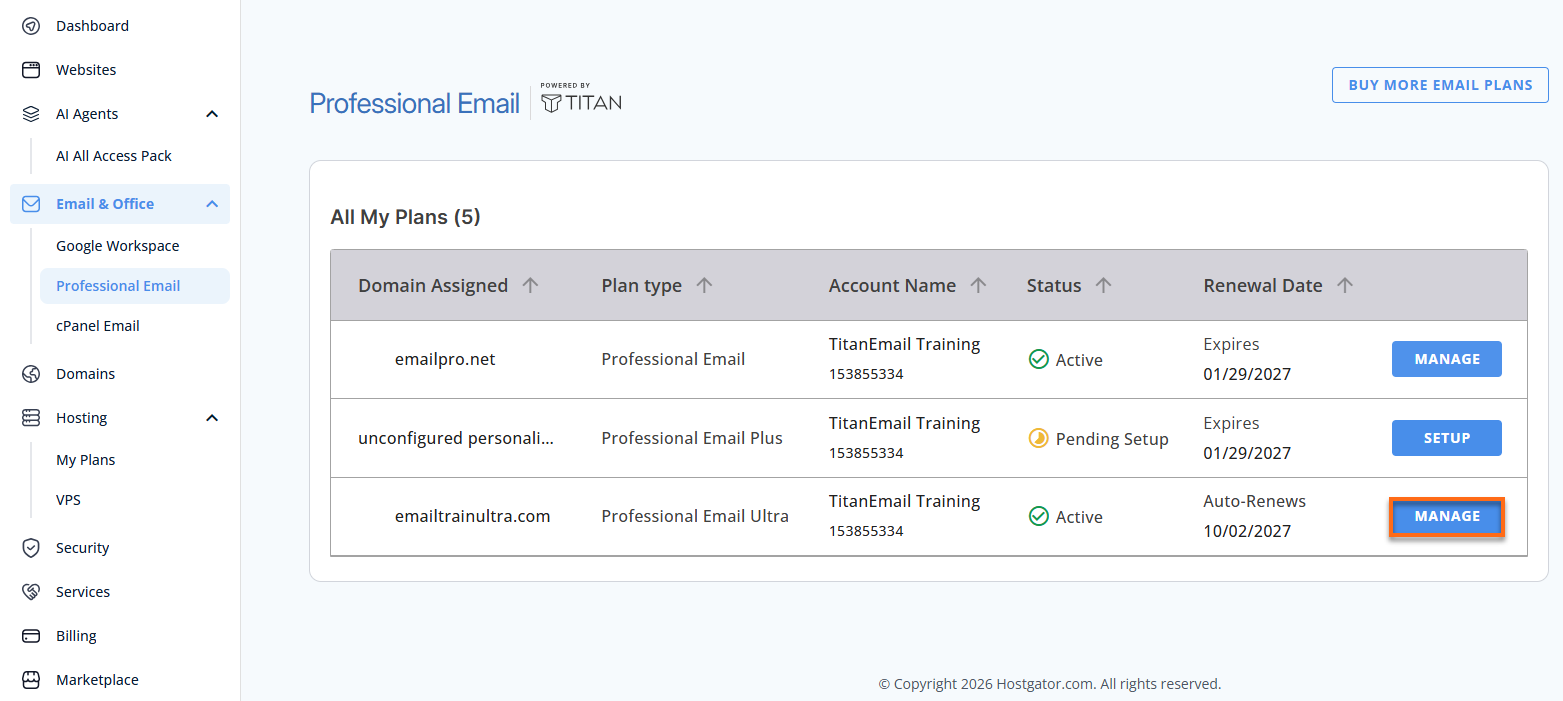
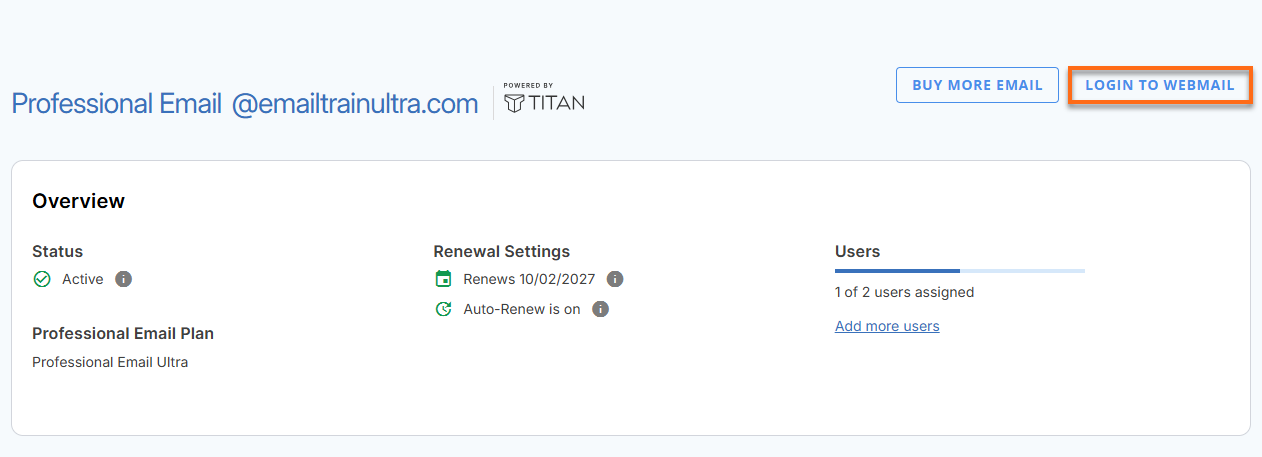
- You’ll be automatically redirected to the Email Management page, where you can manage your email settings and subscriptions.
- Click Login to Webmail.
- Enter your Professional Email username and password.
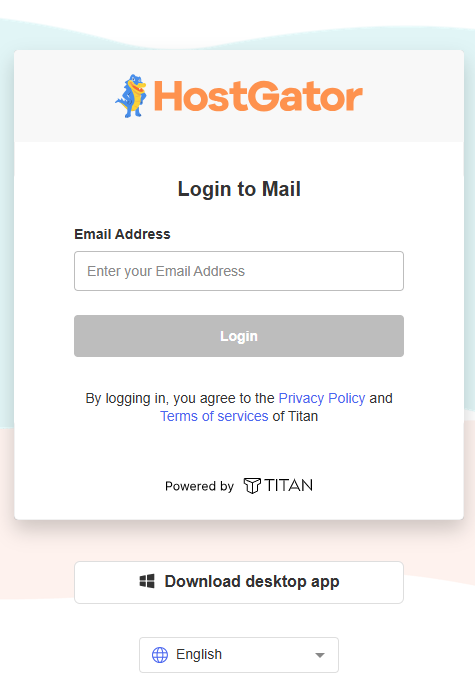
- Click Login.
Option 2: Access Webmail Directly
- Go to the Professional Email login page.
- Enter your email address and password.
- Click Login.
Share a Calendar
Follow these steps to share a calendar:
- Open Calendar in your Professional Email account.
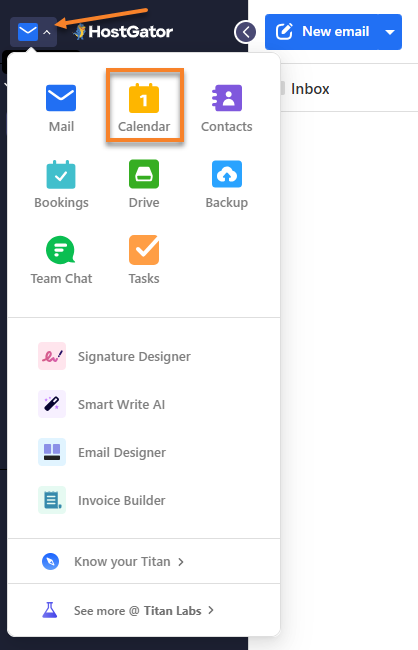
- In the Calendars list, hover over the calendar you want to share.
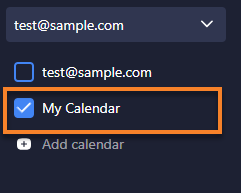
- Click the options icon next to the calendar name.
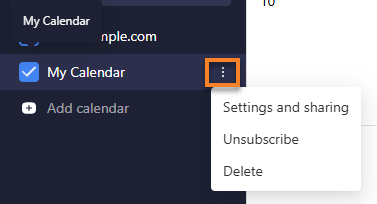
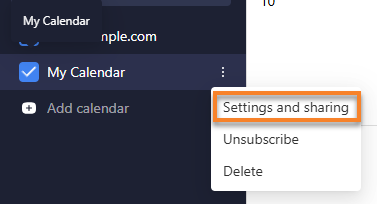
- In the menu, select Settings and sharing.
- On the Share with specific people tab, click Add people.
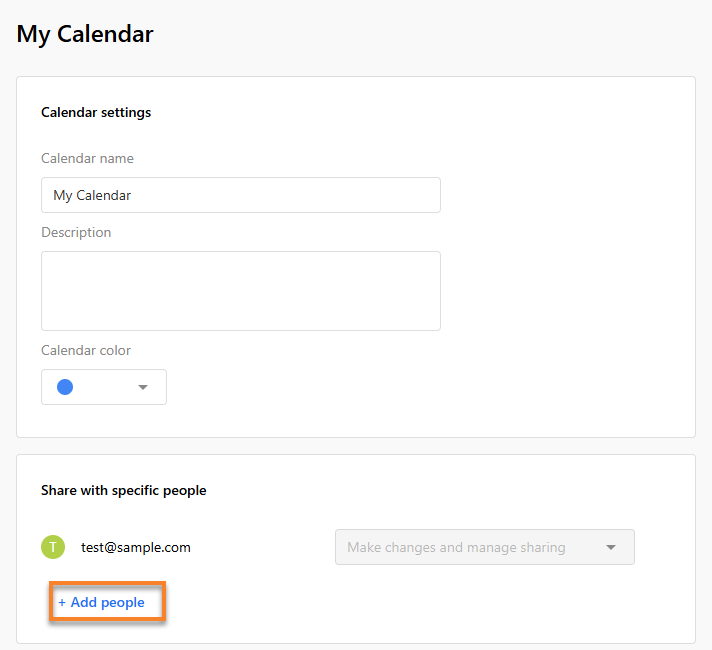
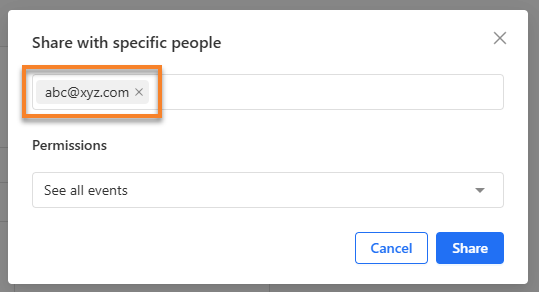
- Enter the email address of the person you want to share with, then press Enter. Repeat this to add more people.
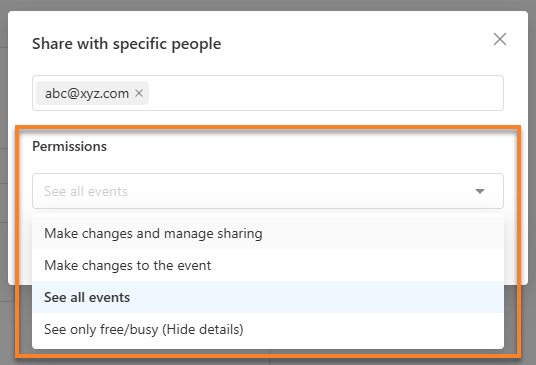
- Set the permission for each person.
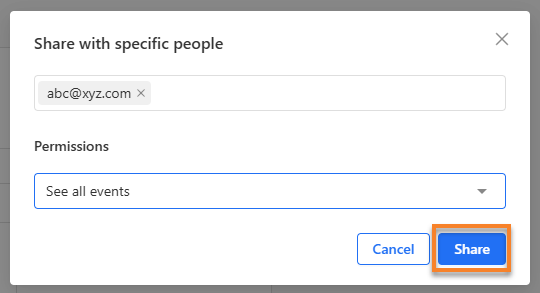
- Click Share.
What Happens After You Share
The person you shared with typically receives an email about the calendar, and the calendar is added to their Calendars list automatically. In most cases, they don't need to accept an invitation.
Troubleshooting
- Problem: The person you shared with can't make changes to the calendar.
- Cause: They don't have edit permission.
- Fix: Update their permission so they can edit the calendar.
- Problem: You can't share the calendar with certain email addresses.
- Cause: Calendar sharing currently works only with Professional Email accounts.
- Fix: Share the calendar only with Professional Email addresses.
Did you find this article helpful?