Purchase a HostGator Self-Managed VPS with Coolify Installation
Coolify gives you a self-hostable alternative to platforms like Heroku or Netlify, letting you deploy and manage apps, databases, and other services on your own VPS without needing deep DevOps knowledge. Push your code, pick a runtime, and Coolify takes care of the rest: containers, networking, reverse-proxying, and TLS certificates, all handled automatically through its built-in Traefik proxy.
Key Benefits of Coolify
Coolify puts a friendly control panel between you and the technical work of running websites, apps, and databases on your own server. You get the same automated experience as pricier platforms like Heroku or Vercel, complete with deploys that trigger the moment you save your code, minus the monthly bill that usually comes with it. Once your server does the heavy lifting instead of a cloud provider, you can run as many projects as it can handle for one flat, predictable cost, with none of the setup headaches that usually come with managing infrastructure yourself.
What You Can Do With Coolify
Coolify covers a wide swath of what web developers and teams managing software need day to day:
- Application Hosting: Deploy and run websites and apps built on major frameworks like Next.js, Vue, Laravel, Python, or Go.
- Database Management: Spin up, configure, and back up databases such as PostgreSQL, MySQL, MongoDB, and Redis, all with one click.
- Self-Hosting Open-Source Tools: Run your own instance of popular software like WordPress, Ghost, analytics platforms, or automation tools.
- Automated Deployments: Link a code repository (like GitHub) so your live site rebuilds and updates automatically every time you push a change.
- Multi-Server Control: Manage, monitor, and deploy across several servers from a single dashboard.
Whether you're running one project or a dozen, Coolify keeps the deployment process just as simple.
System Requirements
Before deploying, ensure your server meets the following minimum hardware requirements. For a stable production deployment, we recommend using higher specifications than the minimum requirements.
Important:
- Do not purchase a server that only meets the minimum requirements (2 vCPUs, 2G RAM, 30G Disk). The minimum specifications represent the software's bare survival threshold and do not account for operating system overhead or production workloads. Running with lower specifications can result in severe performance slowdowns, system freezes, or unexpected crashes during traffic spikes.
- For a stable deployment, we recommend using the recommended specifications (4 vCPU Cores, 8 GB DDR5 RAM, and 200GB NVMe Storage). While minimum specs might be sufficient for basic installation, consider allocating additional disk space if you plan to store recordings, logs, or other application data.
| Resource | Minimum | Recommended |
|---|---|---|
| vCPUs | 2 | 4 vCPU Cores |
| RAM | 2G | 8 GB DDR5 RAM |
| Disk | 30G | 200GB NVMe Storage |
How to Purchase a Self-Managed VPS with Coolify Installation
To use Coolify on HostGator, you first need to buy a Self-Managed VPS plan. Here is how to do it:

Not sure which VPS setup is right for you? That's exactly what Pre-configured Setup is for. You'll find this option near the top of the HostGator Self-Managed VPS purchase page, and it takes the guesswork out of getting started. Just tell us what you're building—a WordPress Site, an AI Agent/Claude Code project, a Dev/Staging environment, or an eCommerce Store—and we'll automatically select the right plan, operating system, and template to match.
- Great option if you're new to VPS or want a fast, easy setup
- Get the recommended configuration for your project right away
- No need to figure out the technical details yourself
- Full flexibility to adjust settings later on
- Open https://www.hostgator.com/vps-hosting in your browser.
- Pick the plan you want and click Choose Plan.
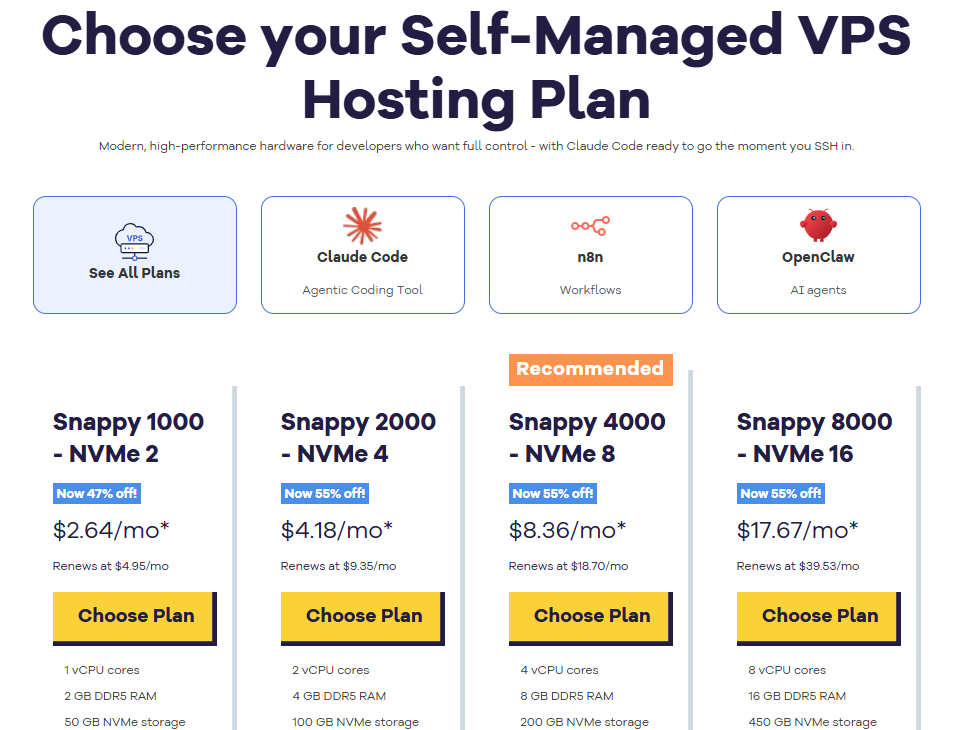
Important: Pricing is subject to change—please visit https://www.hostgator.com/vps-hosting for the current introductory/sign-up offer for HostGator VPS Hosting. For the most up-to-date renewal pricing, visit your HostGator Customer Portal Renewal Center.
- Pick a Data Center location.
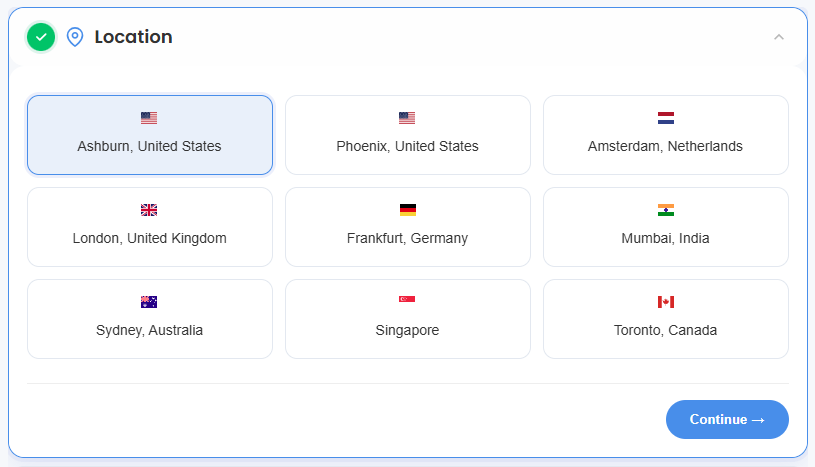
- On the Cart page, you can set up your server the way you want:
- Hardware:
- Pre-selected:
You can change to a different Self-Managed VPS plan here.
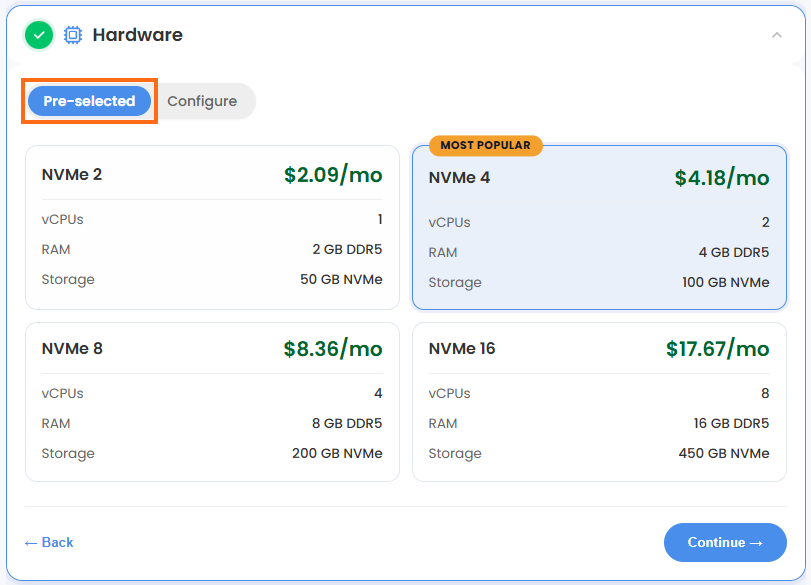
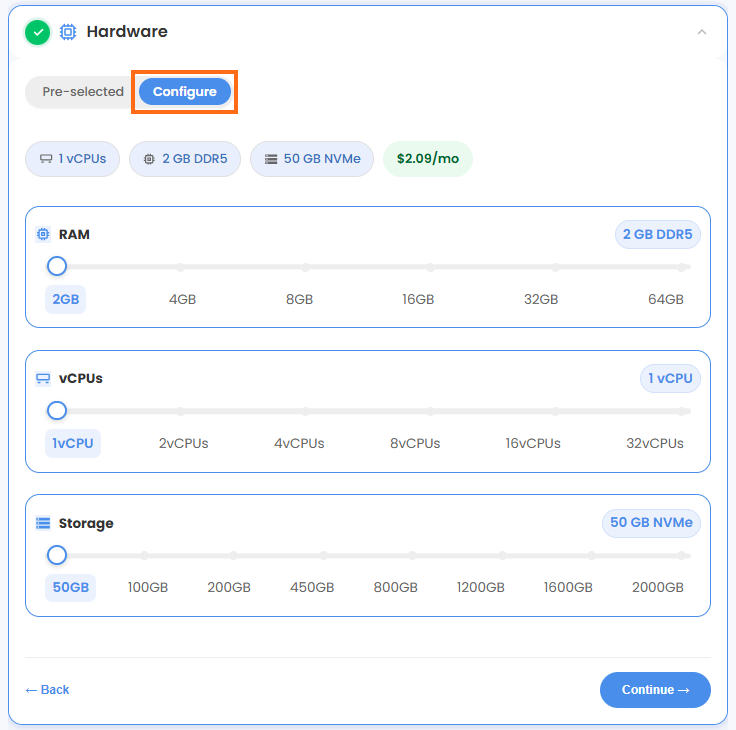
- Configure:
Click Configure if you want to build your own custom package.
Note: Any changes you make here will change the total price.
- Pre-selected:
- Software:
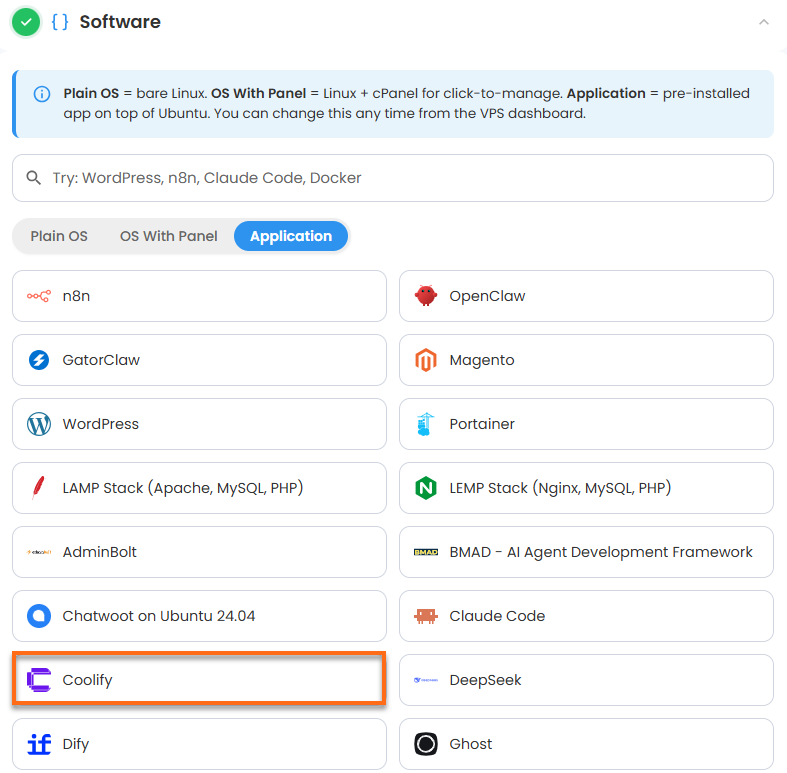
If the selected plan does not meet the app's minimum requirements, the app will be grayed out.
- Click the Application tab.
- Choose Coolify.
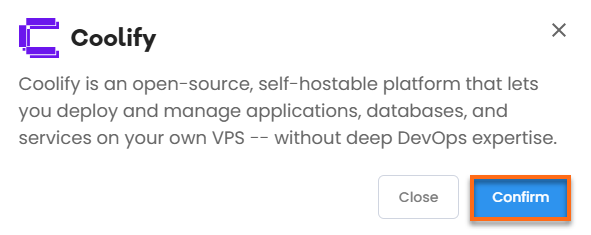
- In the pop-up, click Confirm.
- Hardware:
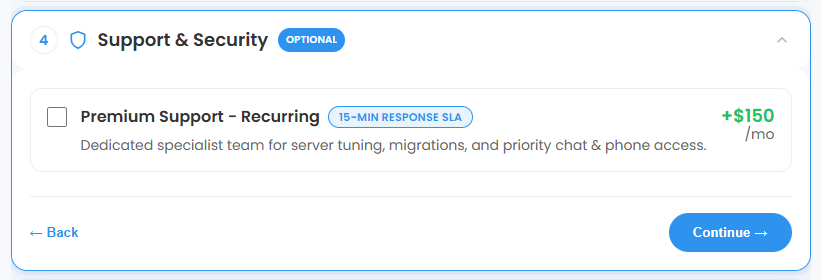
- Support & Security:
You can add Premium Support here for faster help and quicker replies. This is Optional.
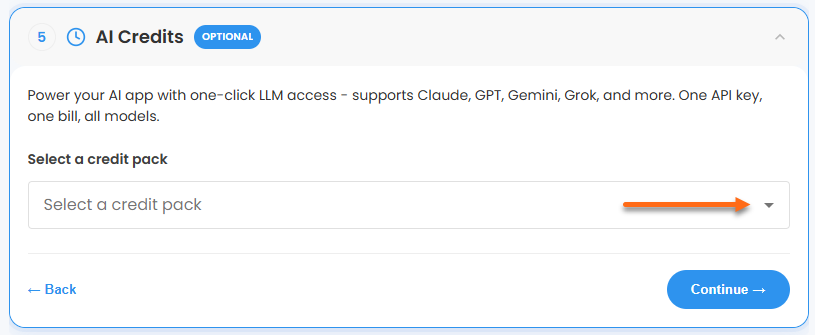
- AI Credits:
Add a HostGator AI Credits package to connect your application to top LLM providers through one API key and a single bill. This step is optional.
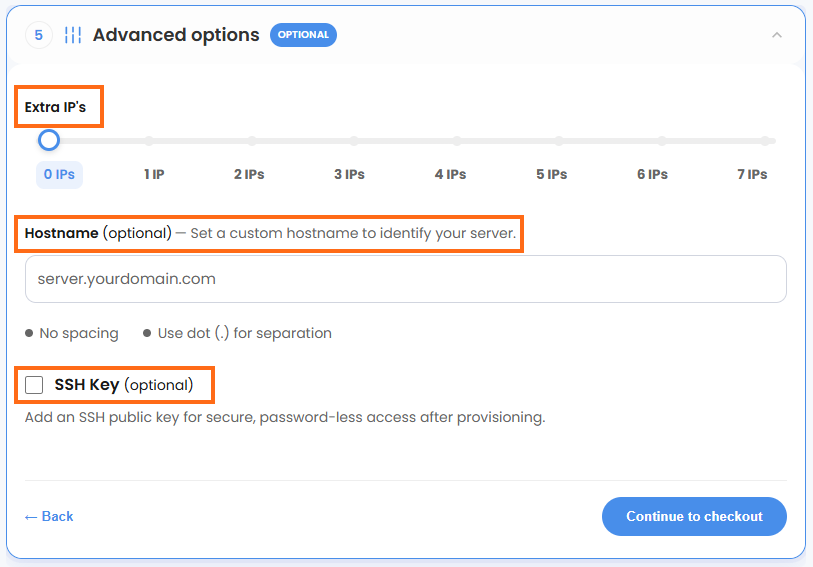
- In Advanced options, you can set these up if you want:
- Extra IPs: Add more IP addresses for an extra cost. The price changes based on how many you add.
- Hostname: Give your server a custom name. This is optional.
- SSH Key: If you want to log in without a password, add your SSH public key here. This is optional.
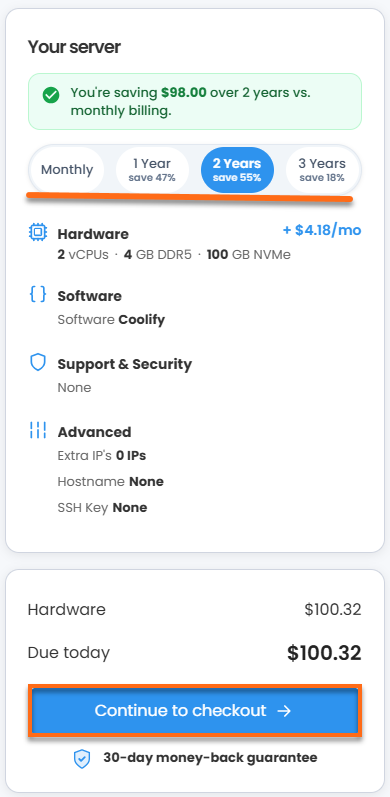
- Choose a billing term, check your Order Summary, then click Continue to Checkout.
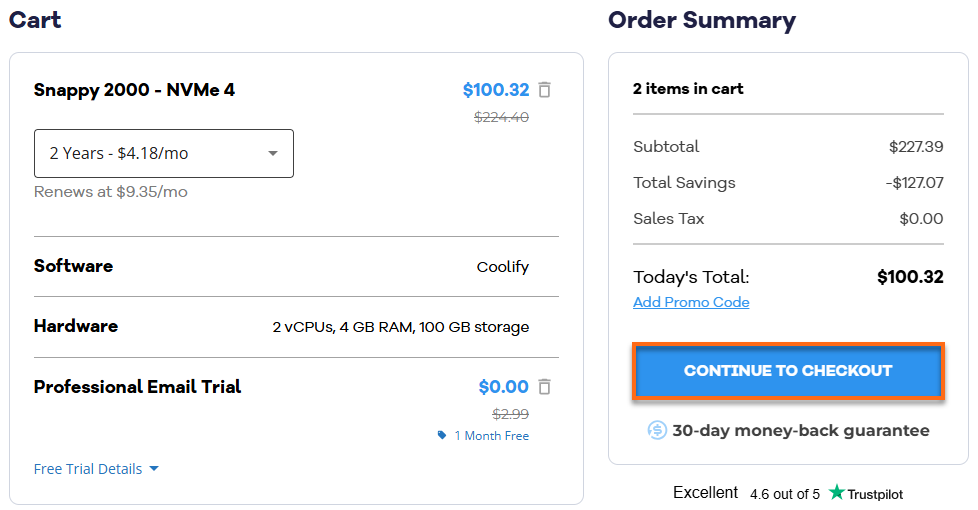
- Check your HostGator cart. Remove any add-ons you don't want, then click Continue to Checkout again.
- On the Checkout page, do the following:
If you are new to HostGator:
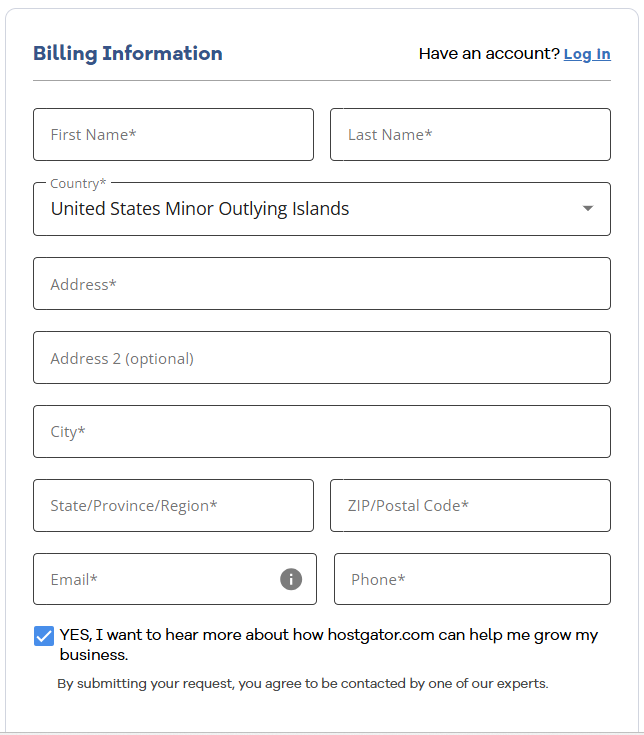
- Fill in your billing information and contact details. If you don't want marketing emails, uncheck the box at the bottom.
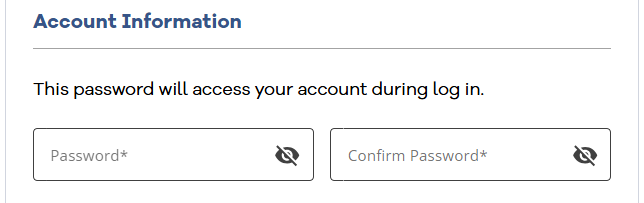
- Create a password for your account.
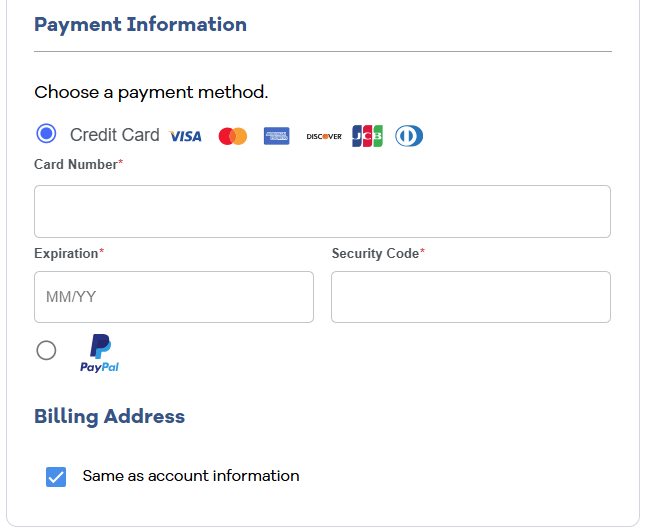
- Choose how you want to pay—Credit Card or PayPal—and enter your payment details.
If you already have an account, your HostGator login details will show up once you log in to your Customer Portal. If you are not logged in, click Log In.
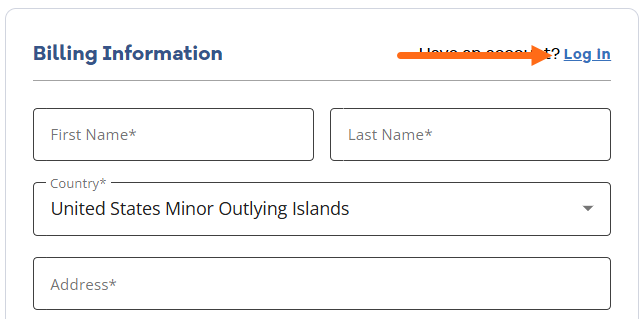
- Fill in your billing information and contact details. If you don't want marketing emails, uncheck the box at the bottom.
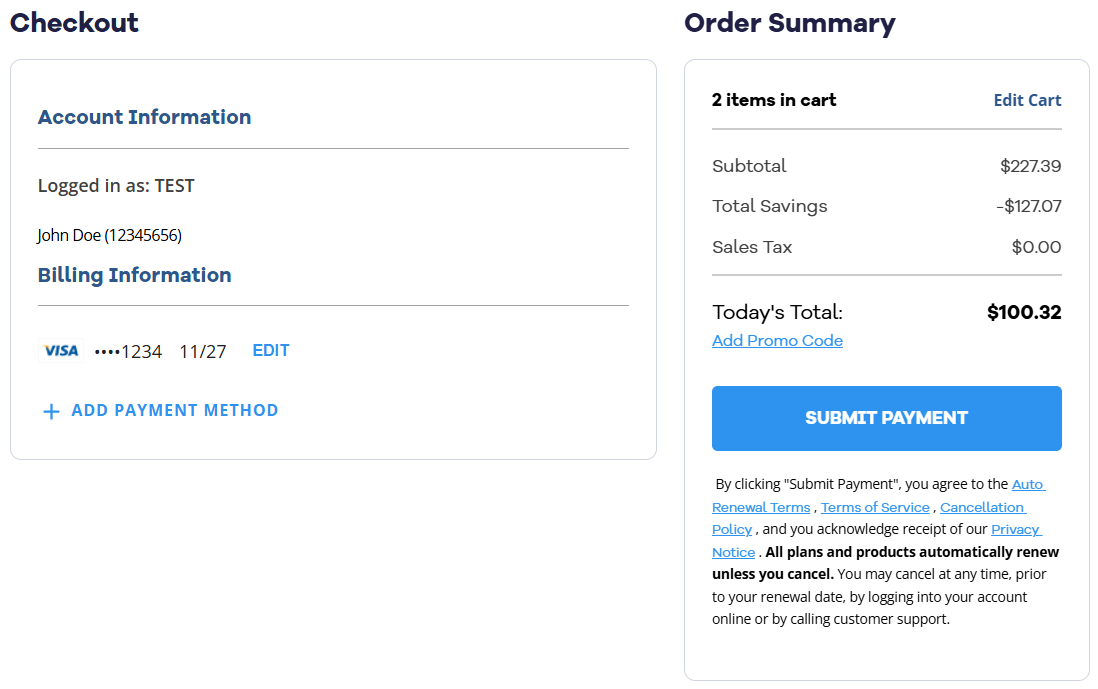
- Review your payment method and order total. If you have a promo code, click Add Promo Code and enter your code. If you need to make changes, click Edit or Add Payment Method. When everything looks correct, click Submit Payment to complete your purchase. By clicking Submit Payment, you agree to the Auto Renewal Terms, Terms of Service, Cancellation Policy, and Privacy Notice.
After checkout, your Self-Managed VPS will begin setting up. Once it’s ready, you can find it under the Hosting tab in your Customer Portal.
Getting Coolify Up and Running
Once installation wraps up, work through the steps below to get your application ready.
- Log in to your Customer Portal.
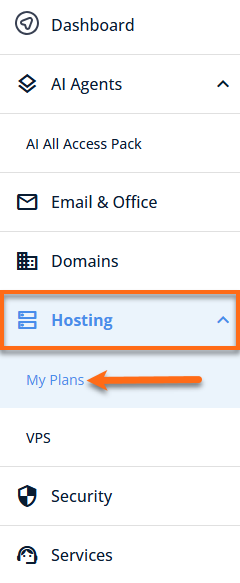
- From the left-hand menu, navigate to Hosting and select My Plans.
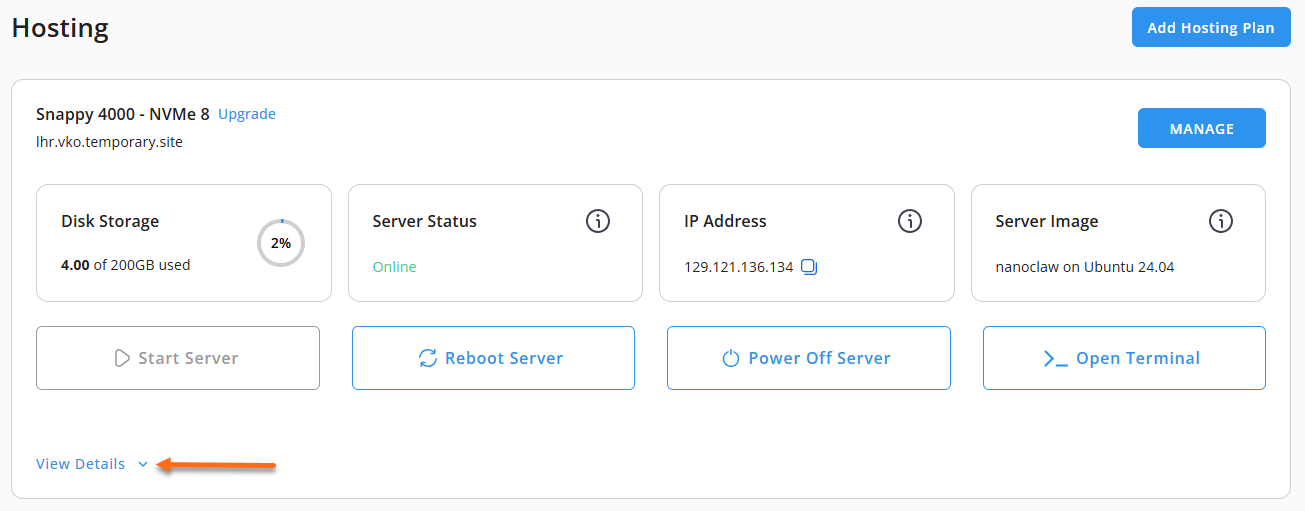
- Locate the server you want to manage, then click View Details in the bottom-left corner to expand the section and access additional server information.
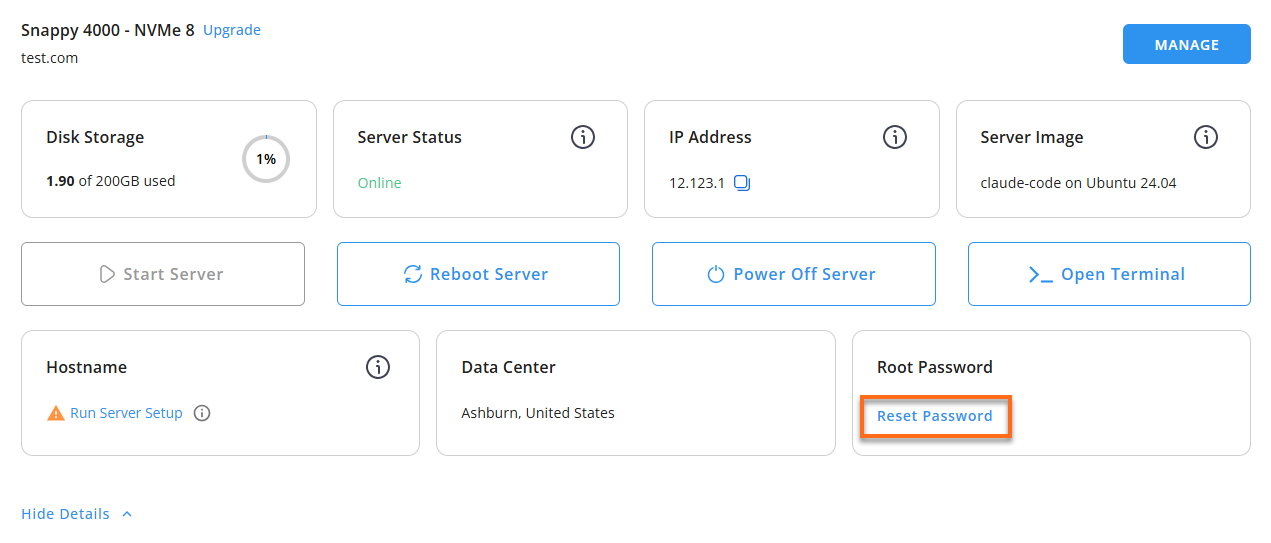
- Click the Reset Password button.
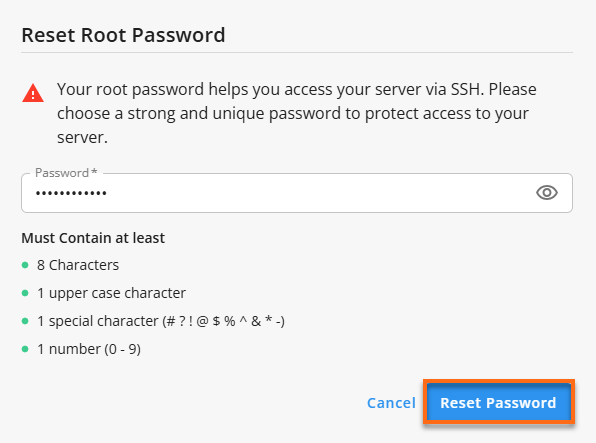
- In the pop-up window, type your new root password, then click Reset Password again to confirm and save the changes.
- Connect to your VPS via SSH.
Open a terminal (or an SSH client like PuTTY) and log in as the administrator using your server's public IP address:Replaceyour_server_ipwith your actual server IP address.
Follow the prompts and enter the new root password you set in the step above. Your first connection greets you with a message like this:ssh root@your_server_ipWelcome to Ubuntu 24.04.4 LTS (GNU/Linux 6.8.0-117-generic x86_64) ******************************************************************************** Coolify - Self-Hosted Cloud Platform Service Status: Docker : active Coolify : Up About a minute (healthy) Traefik : not running (starts after first server is registered) Management UI : http://12.123.12.1:8000 First-time setup: 1. Open http://12.123.12.1:8000 -- fill in your details and create account 2. Click 'Let's go!' -> 'This Machine' -> 'Create My First Project' 3. Click 'Deploy Your First Resource' to start deploying If 'This Machine' validation fails, run: bash /opt/coolify/setup-localhost.sh Credentials : sudo cat /root/.app_passwords Documentation : /root/README.md Note: Traefik (ports 80/443) only starts after you register a server in the Coolify UI. That is expected behavior. - Check your server credentials (if you need them):
Example Output:sudo cat /root/.app_passwords
COOLIFY_ADMIN_PASSWORD="abc123test1c2d42c1f5e3b2d1f7c4" COOLIFY_DB_PASSWORD="btest1bc1239b21d15e4ad32e5d6bc" - Open the Coolify Management UI and create your account:
- Navigate to
http://<your-server-ip>:8000/Replaceyour_server_ipwith your actual server IP address. - Enter your email, password, and other details to set up your first admin account.
- Navigate to
- Register your server and start your first project:
- Once you're logged into the Coolify UI, click "Let's go!".
- Select This Machine to register the server you're already on, and follow the prompts.
- Name your project and finish the wizard. Your server and project will both show up on the dashboard.
- Deploy your first resource (app, database, or service):
- Click "Deploy Your First Resource" from the dashboard.
- Pick the resource type, fill in the configuration, and hit deploy.
- Coolify provisions it and streams the deployment logs right in the UI.
- If something doesn't validate:
Run this if the Coolify UI can't register your server, then try registering again from the web UI.bash /opt/coolify/setup-localhost.sh
- Where to find credentials and configuration:
- List credentials:
sudo cat /root/.app_passwords
- List credentials:
Additional Information and Examples
You can run cat /root/README.md to see more information and useful commands:
Example Output:
root@server-123456:~# cat /root/README.md
# Coolify

## Description

Coolify is an open-source, self-hostable platform that lets you deploy and manage applications, databases, and services on your own VPS -- without deep DevOps expertise.

Think of it as a self-hosted Heroku or Netlify: push your code, pick a runtime, and Coolify handles containers, networking, reverse-proxying, and TLS certificates automatically via its built-in Traefik proxy.

This image ships Docker and all Coolify container images pre-pulled, so the management UI is available within about 30 seconds of first boot.
Create your admin account, click "This Machine" in the setup wizard, and you're ready to deploy.

Traffic flow:

```
Browser (HTTPS/HTTP)
        |
        v
  Traefik (ports 80, 443)   <- managed by Coolify
        |
   +------------------------------+
   |  Coolify apps / databases    |
   |  (Docker containers)         |
   +------------------------------+

Browser -> Coolify management UI:
  http://:8000  (direct -- bypasses Traefik)
```

Coolify's Traefik proxy manages SSL certificates for all deployed applications via Let's Encrypt automatically once a domain is pointed at the server.


## Services

Service             | Port(s)    | Purpose
--------------------|------------|-----------------------------------------
Coolify UI          | 8000       | Management dashboard (direct access)
Traefik proxy       | 80, 443    | App routing and automatic TLS
Traefik dashboard   | 8080       | Proxy dashboard (SSH-tunnel access only)
Coolify realtime    | 6001       | WebSocket push for live UI updates
PostgreSQL          | 5432       | Coolify internal database (Docker, local)
Redis               | 6379       | Coolify queues / caching (Docker, local)
OpenSSH             | 22         | SSH (rate-limited by UFW)

Ports are protected using UFW.  Note: Docker bypasses UFW for container-mapped ports; port 8080 (Traefik dashboard) is intentionally not opened in UFW -- access it via SSH tunnel.


## How-to-use

### Initial access

Open http://:8000 in your browser.  The registration page appears on the first visit.

1. Fill in your name, email, and password, then click **"Create Account"**.
2. A welcome screen appears -- click **"Let's go!"**.
3. On "Choose Server Type", pick the option that matches your setup:

   | Option | When to use |
   |--------|-------------|
   | **This Machine** (Quick Start) | Deploy apps on the same server running Coolify.  Good for single-server setups and testing. |
   | **Remote Server** (Recommended) | Connect Coolify to a separate server via SSH -- a cloud VPS, bare metal, or home server.  Keeps Coolify isolated from your workloads. |
   | **Hetzner Cloud** | Provision and manage Hetzner Cloud servers directly from the Coolify UI.  Requires a Hetzner API key. |

   For most users getting started: click **"This Machine"**.  Coolify validates the connection automatically.
4. On "Project Setup", click **"Create 'My First Project'"**.
5. The "Setup Complete!" screen confirms everything is ready.  Click **"Deploy Your First Resource"** to start deploying.

Credentials (if any) are stored in /root/.app_passwords:

```sh
sudo cat /root/.app_passwords
```

### Troubleshooting: "This Machine" validation fails

If the wizard shows a 504 or SSH error during validation, Coolify may have generated its own SSH key that isn't yet authorized on the host.  Run:

```sh
bash /opt/coolify/setup-localhost.sh
```

This reads all keys from /data/coolify/ssh/keys/ and adds any missing public keys to /root/.ssh/authorized_keys.  Then retry validation in the Coolify wizard.

### Enabling HTTPS for deployed apps

Coolify manages Traefik and Let's Encrypt automatically.  To enable HTTPS for an app:

1. Point a domain's DNS A record at .
2. In Coolify, open your app, go to Domains, and enter https://yourdomain.com.
3. Enable "Generate SSL Certificate" -- Coolify instructs Traefik to obtain a Let's Encrypt cert.

No manual certbot or nginx configuration is required.

### Enabling HTTPS for the Coolify management UI

By default the management UI is served over plain HTTP on port 8000.  To enable HTTPS:

1. Point a domain at the server and configure it in Coolify -> Settings -> Instance Settings.
2. Enable Wildcard / FQDN for the instance.
3. Coolify's Traefik will serve the UI over HTTPS on port 443.

### Traefik dashboard (monitoring proxy state)

The Traefik dashboard runs on port 8080 (not publicly open).  Access it via SSH tunnel:

```sh
ssh -L 8080:localhost:8080 root@
# then open http://localhost:8080 in your browser
```

### API token (for SSO / automation)

After creating your admin account:

1. Go to Profile -> API Tokens -> Create Token.
2. Copy the token and append it to /root/.app_passwords:
   COOLIFY_API_TOKEN=

The API token enables programmatic server management and can be used to build a signed-redirect SSO path.

### Managing Coolify services

```sh
# Status
systemctl status coolify
docker ps

# Restart all Coolify containers
systemctl restart coolify

# View Coolify application logs
docker logs coolify

# View first-boot log
cat /var/log/coolify/onboot.log

# Traefik logs
docker logs coolify-proxy

# Stop everything cleanly
systemctl stop coolify
```

### Updating Coolify

```sh
cd /data/coolify/source
docker compose -f docker-compose.yml -f docker-compose.prod.yml pull
systemctl restart coolify
```

### Backup and restore

Coolify stores all persistent data in Docker volumes under /data/coolify/.

```sh
# Backup
tar czf coolify-backup-$(date +%Y%m%d).tar.gz /data/coolify/

# Restore
tar xzf coolify-backup-YYYYMMDD.tar.gz -C /
systemctl restart coolify
```


## Minimum Resources

Resource | Minimum
---------|--------
vCPUs    | 2
RAM      | 2G
Disk     | 30G


## Links

Documentation: [https://coolify.io/docs](https://coolify.io/docs)

Community: [https://discord.gg/coolify](https://discord.gg/coolify)

GitHub: [https://github.com/coollabsio/coolify](https://github.com/coollabsio/coolify)

Manage: [http://{server_ip}:8000](http://{server_ip}:8000)