Purchase a HostGator Self-Managed VPS with Dify Installation
Dify gives you everything from simple customer service chatbots to advanced automation workflows. With self-managed VPS hosting, you get complete control: configure the software and scale resources exactly how your business needs them.
Key Benefits of Dify
Connect your favorite AI models directly to your company's secure data and everyday tools using Dify. Get fast, accurate answers built around your specific business needs, using an open-source platform you configure and control yourself.
What You Can Do With Dify
Build and manage your AI assistants on Dify, an open-source platform. It keeps your data secure, connects your tools seamlessly, and lets you tap into leading AI models to get more done, faster.
- Chatbots: Simple, conversational assistants designed for direct, back-and-forth Q&A.
- AI Agents: Autonomous systems that use reasoning to figure out a problem and deploy external tools (like searching the web, browsing Wikipedia, or executing code) to get the job done.
- Workflows: Multi-step background automations that handle repeatable business processes (e.g., automatically taking incoming data, rewriting it, and passing it along).
- Chatflows: Advanced chatbots embedded with branching logic, distinct user paths, and custom variables.
- Text Generators: Instant content creators where a user fills out a few fields to instantly output formatted reports, summaries, or emails.
Whatever your business needs, Dify gives you the flexibility to build the right AI tool for the job.
System Requirements
Before deploying, ensure your server meets the following minimum hardware requirements. For a stable production deployment, we recommend using higher specifications than the minimum requirements.
Important:
- Do not purchase a server that only meets the minimum requirements. The minimum specifications represent the software's bare survival threshold and do not account for operating system overhead or production workloads. Running with only 2 vCPUs, 4 GB RAM, and 20 GB disk space can result in severe performance slowdowns, system freezes, or unexpected crashes during traffic spikes.
- HostGator Self-Managed VPS plans lack dedicated GPUs (VRAM). Running local LLMs entirely on their CPUs will cause extremely slow response times. For optimal performance, host your application on HostGator but connect it to an external AI cloud provider (like OpenAI or Anthropic) via API.
- For a stable deployment, we recommend using at least 4 vCPUs, 8 GB RAM, and 40 GB disk space. While lower specs might be sufficient for basic installation, consider allocating additional disk space if you plan to store recordings, logs, or other application data.
| Resource | Minimum | Recommended |
|---|---|---|
| CPU | 2 vCPUs | 4 vCPUs |
| RAM | 4 GB | 8 GB |
| Disk | 20 GB | 40 GB |
How to Purchase a Self-Managed VPS with Dify Installation
To use Dify on HostGator, you first need to buy a Self-Managed VPS plan. Here is how to do it:

Not sure which VPS setup is right for you? That's exactly what Pre-configured Setup is for. You'll find this option near the top of the HostGator Self-Managed VPS purchase page, and it takes the guesswork out of getting started. Just tell us what you're building—a WordPress Site, an AI Agent/Claude Code project, a Dev/Staging environment, or an eCommerce Store—and we'll automatically select the right plan, operating system, and template to match.
- Great option if you're new to VPS or want a fast, easy setup
- Get the recommended configuration for your project right away
- No need to figure out the technical details yourself
- Full flexibility to adjust settings later on
- Open https://www.hostgator.com/vps-hosting in your browser.
- Pick the plan you want and click Choose Plan.
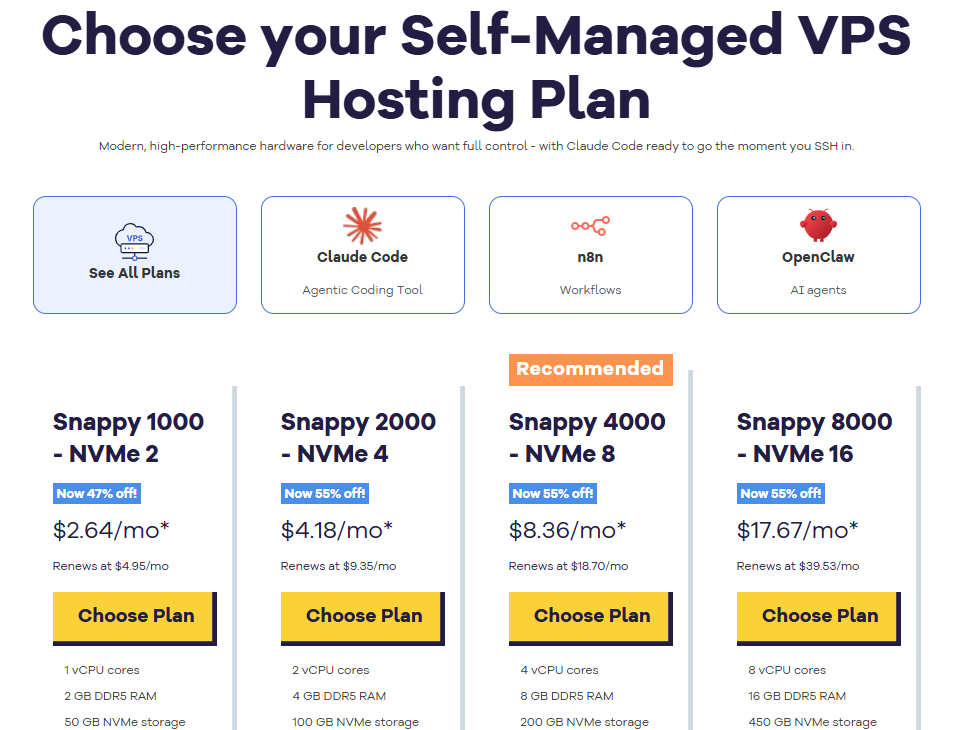
Important: Pricing is subject to change—please visit https://www.hostgator.com/vps-hosting for the current introductory/sign-up offer for HostGator VPS Hosting. For the most up-to-date renewal pricing, visit your HostGator Customer Portal Renewal Center.
- Pick a Data Center location.
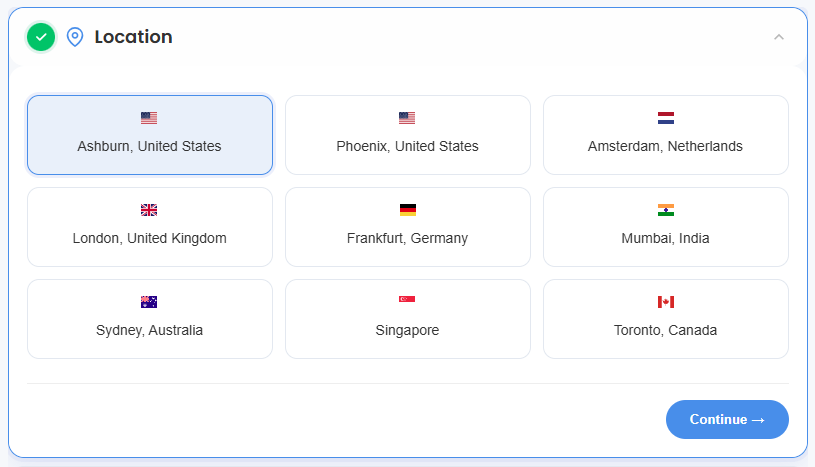
- On the Cart page, you can set up your server the way you want:
- Hardware:
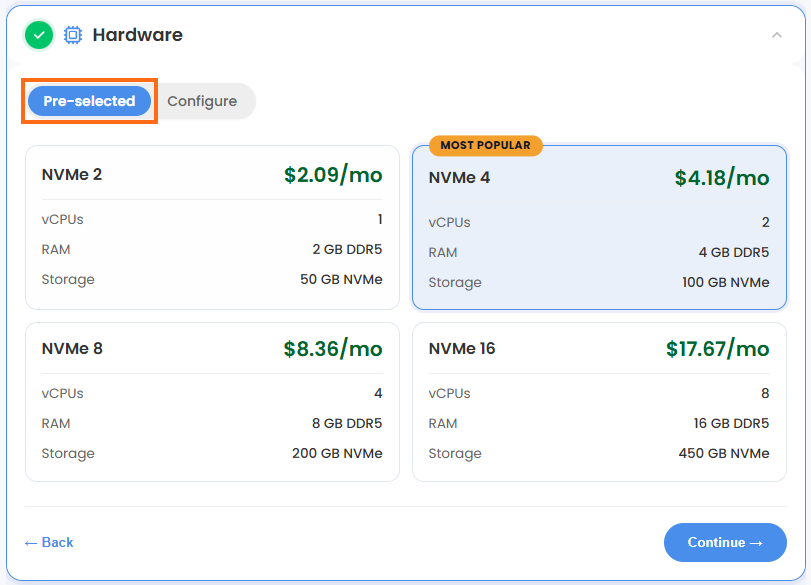
- Pre-selected:
You can change to a different Self-Managed VPS plan here.
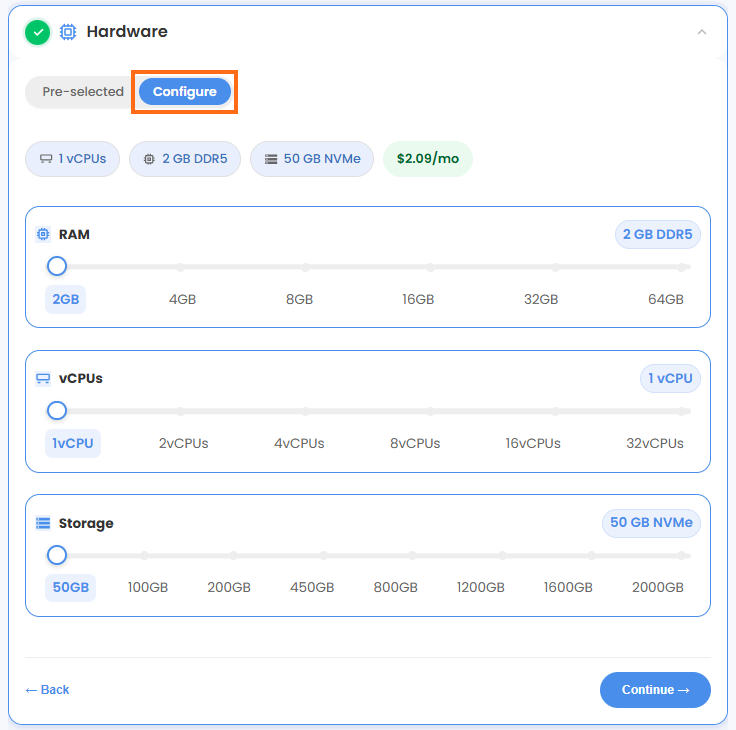
- Configure:
Click Configure if you want to build your own custom package.
Note: Any changes you make here will change the total price.
- Pre-selected:
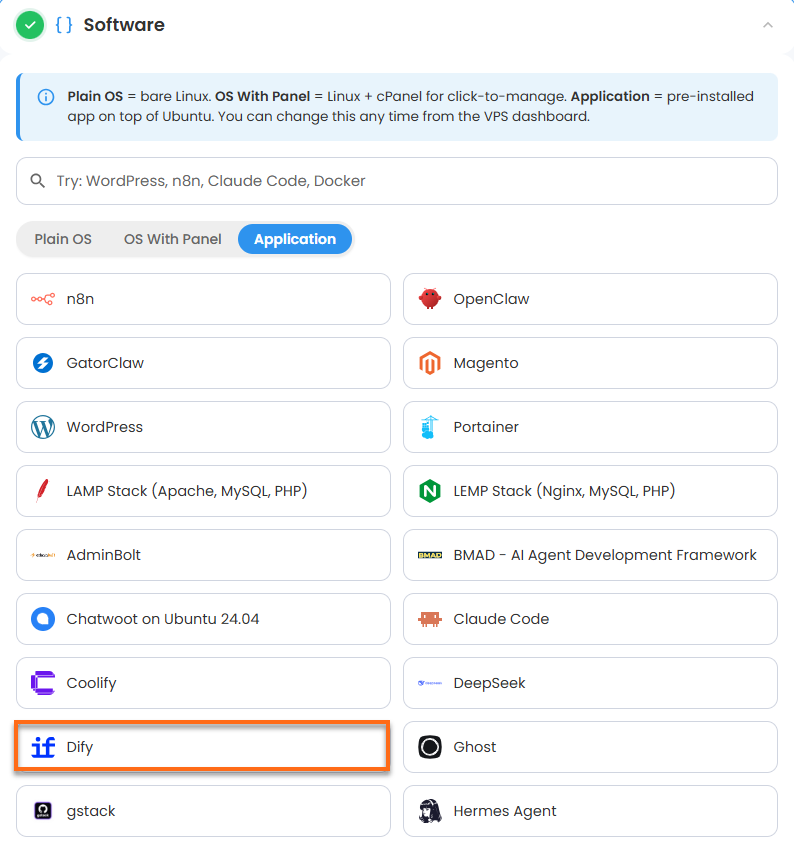
- Software:
If the selected plan does not meet the app's minimum requirements, the app will be grayed out.
- Click the Application tab.
- Choose Dify.
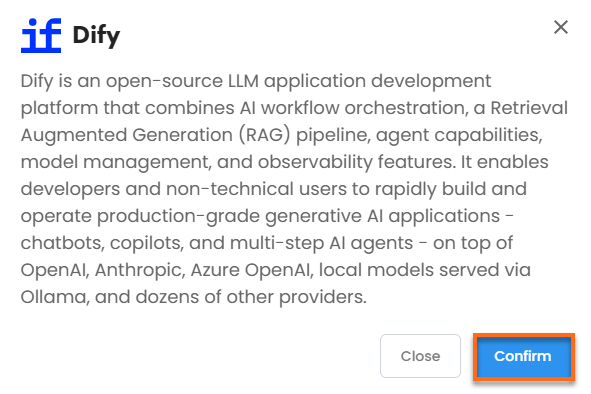
- In the pop-up, click Confirm.
- Hardware:
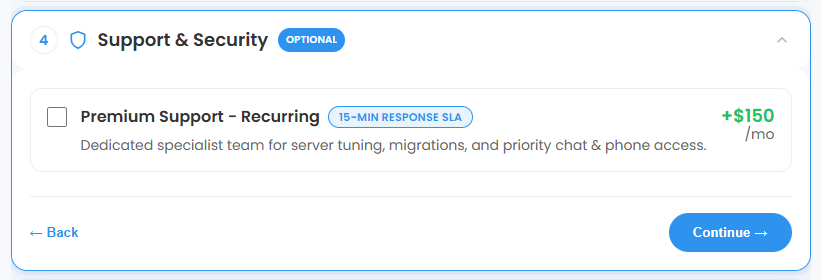
- Support & Security:
You can add Premium Support here for faster help and quicker replies. This is Optional.
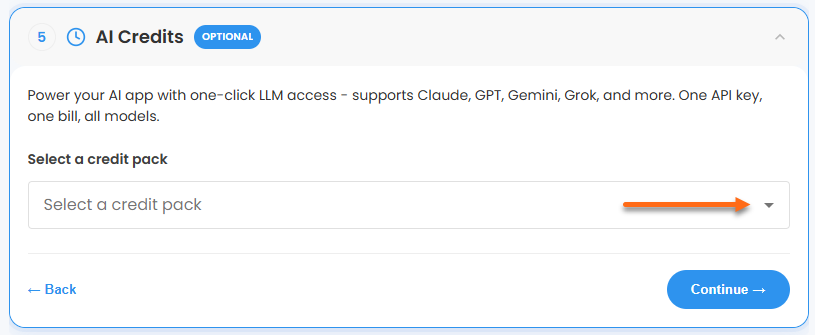
- AI Credits:
Add a HostGator AI Credits package to connect your application to top LLM providers through one API key and a single bill. This step is optional.
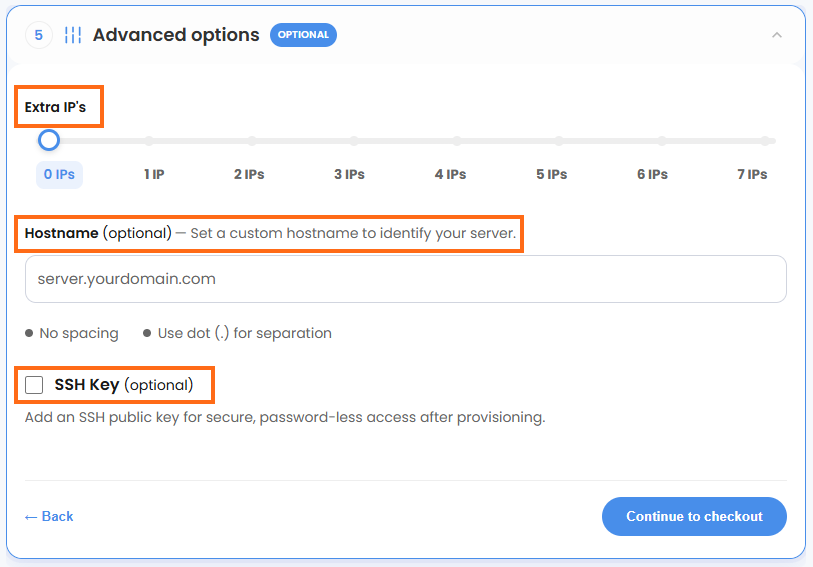
- In Advanced options, you can set these up if you want:
- Extra IPs: Add more IP addresses for an extra cost. The price changes based on how many you add.
- Hostname: Give your server a custom name. This is optional.
- SSH Key: If you want to log in without a password, add your SSH public key here. This is optional.
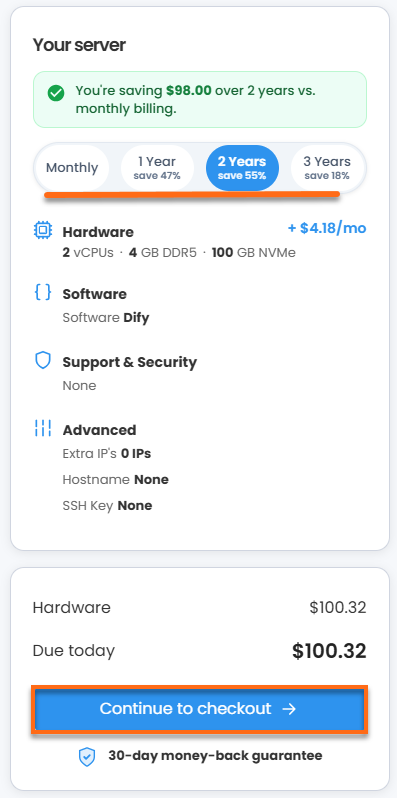
- Choose a billing term, check your Order Summary, then click Continue to Checkout.
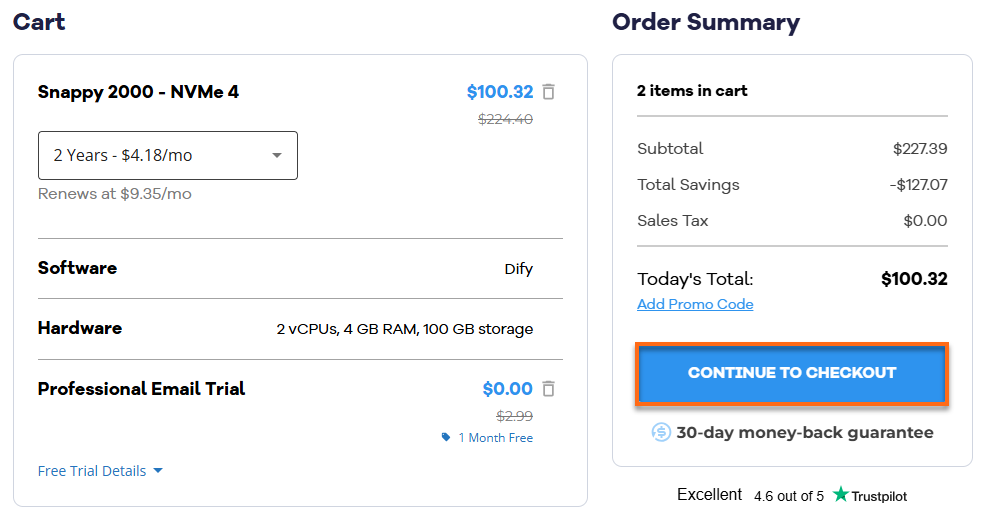
- Check your HostGator cart. Remove any add-ons you don't want, then click Continue to Checkout again.
- On the Checkout page, do the following:
If you are new to HostGator:
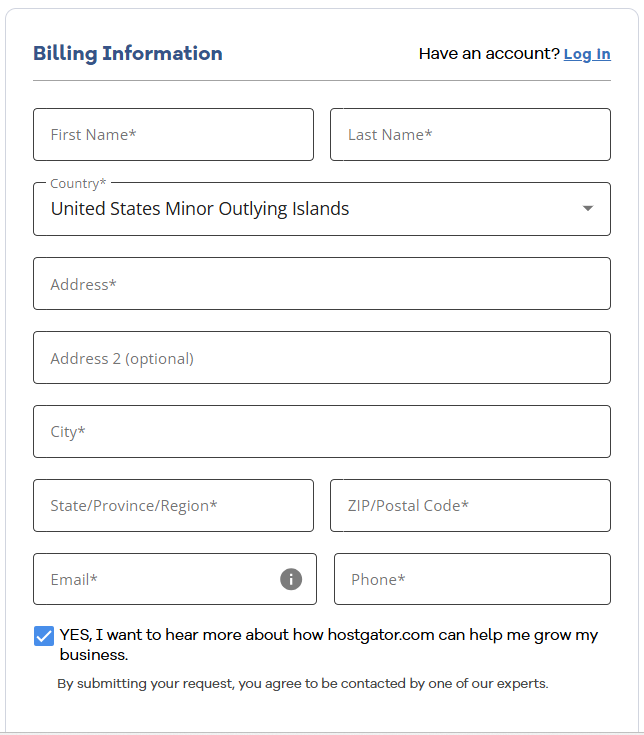
- Fill in your billing information and contact details. If you don't want marketing emails, uncheck the box at the bottom.
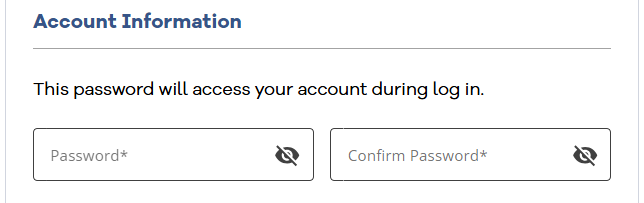
- Create a password for your account.
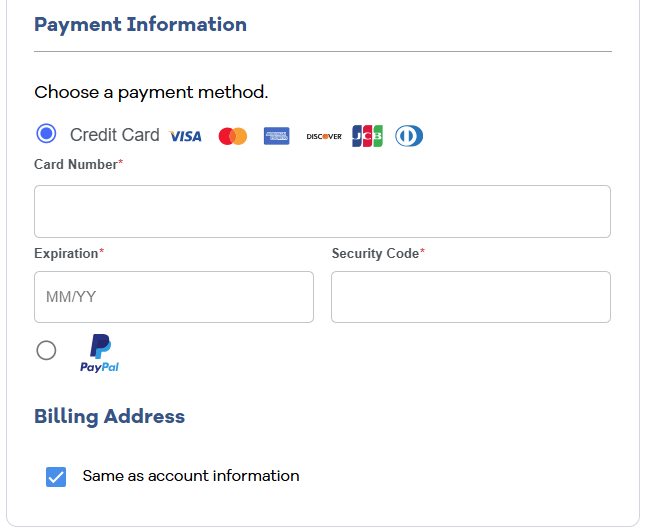
- Choose how you want to pay—Credit Card or PayPal—and enter your payment details.
If you already have an account, your HostGator login details will show up once you log in to your Customer Portal. If you are not logged in, click Log In.
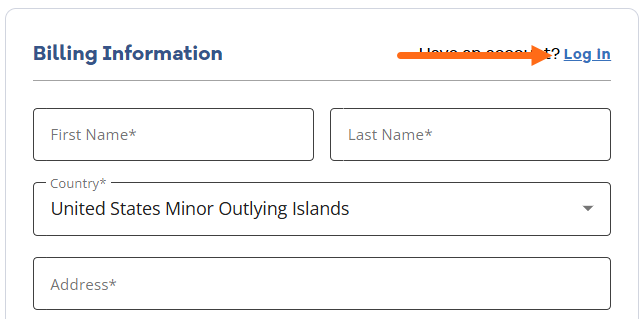
- Fill in your billing information and contact details. If you don't want marketing emails, uncheck the box at the bottom.
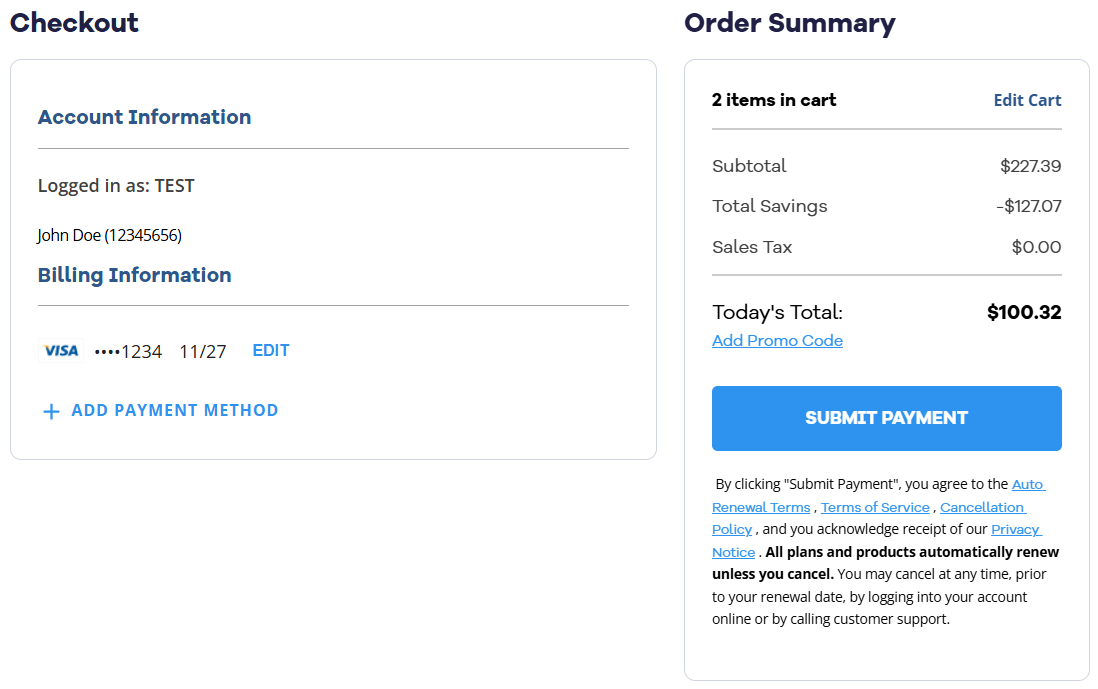
- Review your payment method and order total. If you have a promo code, click Add Promo Code and enter your code. If you need to make changes, click Edit or Add Payment Method. When everything looks correct, click Submit Payment to complete your purchase. By clicking Submit Payment, you agree to the Auto Renewal Terms, Terms of Service, Cancellation Policy, and Privacy Notice.
After checkout, your Self-Managed VPS will begin setting up. Once it’s ready, you can find it under the Hosting tab in your Customer Portal.
Getting Dify Running on Ubuntu 24.04
Dify is an all-in-one platform for building and running AI applications like chatbots, smart assistants, and automated workflows.
This guide walks you through setting up your new Dify server, logging in for the first time, and managing your application going forward.
Step 1: Log Into Your Dify Dashboard
Once installation finishes:
- Log in to your Customer Portal.
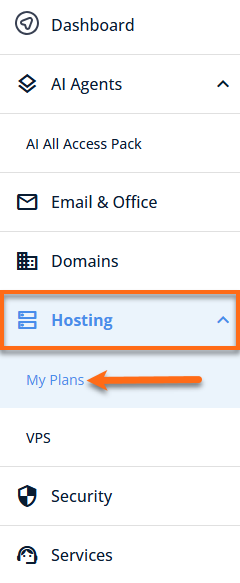
- From the left-hand menu, navigate to Hosting and select My Plans.
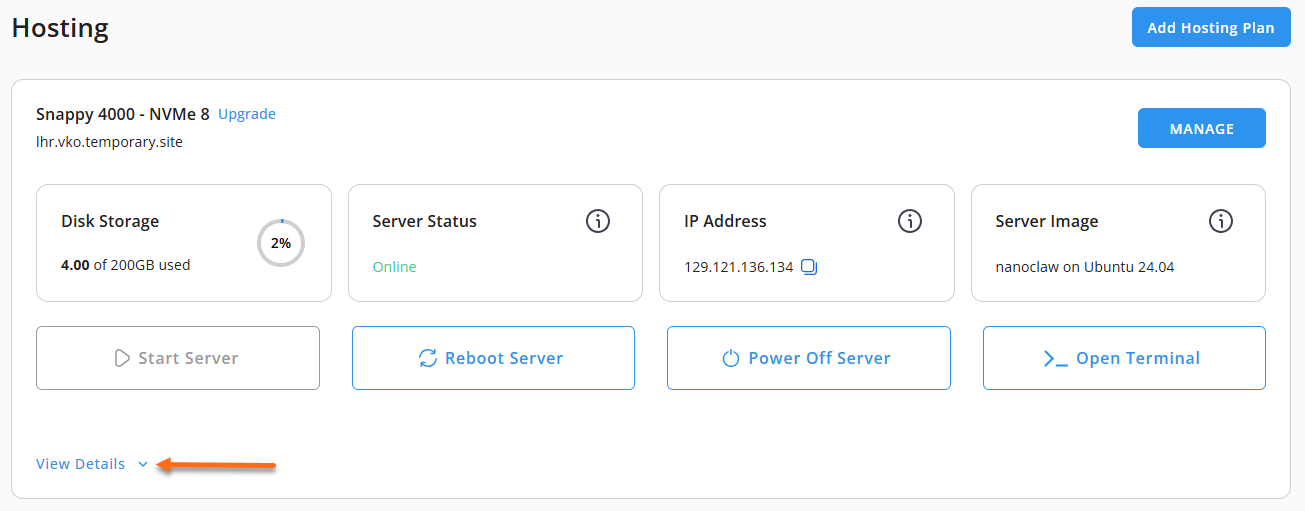
- Locate the server you want to manage, then click View Details in the bottom-left corner to expand the section and access additional server information.
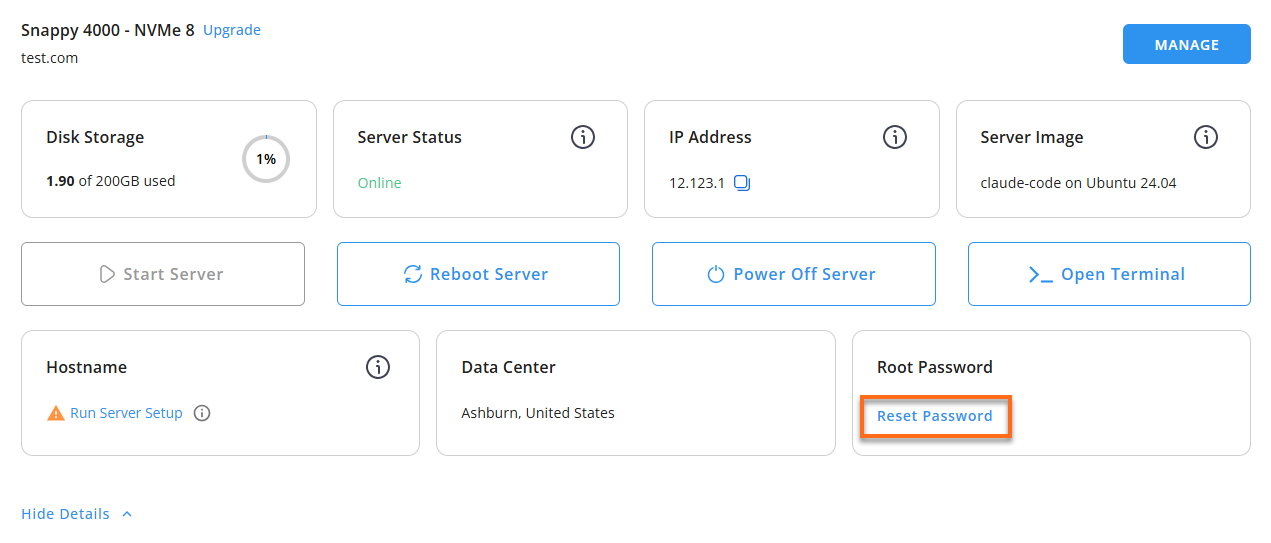
- Click the Reset Password button.
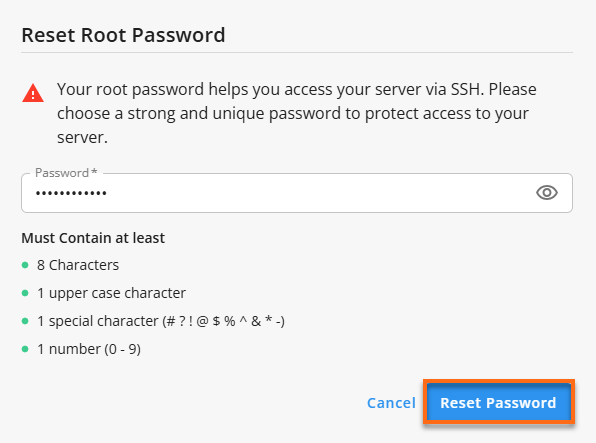
- In the pop-up window, type your new root password, then click Reset Password again to confirm and save the changes.
- Connect to your VPS via SSH.
Log in with your VPS IP and credentials through an SSH client, and enter your root password when prompted:Replaceyour_server_ipwith your actual server IP address.ssh root@your_server_ipExample Output:
Welcome to Ubuntu 24.04.4 LTS (GNU/Linux 6.8.0-124-generic x86_64) ============================================================ DIFY (LLM application development platform) ============================================================ Dashboard: https://your_server_ip/install (first visit) https://your_server_ip/signin (after setup) SSH: ssh root@your_server_ip Service Status: Dify stack: running (12 containers up, API healthy) First-time setup: 1. Open https://your_server_ip/install in your browser (accept the browser security warning if using a self-signed cert) 2. Enter the init password (see /root/.app_passwords), then create the admin account (email + password) The first account becomes the workspace owner 3. Log in at https://your_server_ip/signin 4. Settings -> Model Provider -> add an API key (OpenAI, Anthropic, Azure, Ollama, etc.) Credentials / secrets: /root/.app_passwords TLS certificate: /opt/dify/docker/nginx/ssl/ Environment file: /opt/dify/docker/.env Persistent data: /opt/dify/docker/volumes First-boot log: /var/log/dify/onboot.log Full README: /root/README.md Useful commands: Status: cd /opt/dify/docker && docker compose ps Logs: cd /opt/dify/docker && docker compose logs -f Restart: cd /opt/dify/docker && docker compose restart Update: cd /opt/dify && git pull && cd docker && docker compose pull && docker compose up -d Remove this MOTD: rm /etc/update-motd.d/99_dify ============================================================ - Want to review the deployment notes without leaving your terminal? Display the original README file with:
cat /root/README.md
Step 2: Let the Server Finish Booting
The first time your Ubuntu 24.04 server boots, a background script kicks in to lock down security, generate random passwords, and bring up the Docker containers. Since Dify runs 12 containers at once, expect the full initialization to take 3 to 8 minutes.
- Watch the setup progress with:
tail -f /var/log/dify/onboot.log
Example Output:
root@50-6-111-93:~# tail -f /var/log/dify/onboot.log docker-plugin_daemon-1 Up About a minute docker-ssrf_proxy-1 Up About a minute docker-weaviate-1 Up About a minute docker-web-1 Up About a minute docker-worker-1 Up About a minute docker-worker_beat-1 Up About a minute >>> Dify install page is reachable at https://12.1.123.12/install >>> First-boot configuration complete. >>> Access Dify at: https://12.1.123.12/install >>> Credentials : /root/.app_passwords - Once the log settles down, confirm every service is healthy:
Check the status column. Everything should read Up or Healthy.
cd /opt/dify/docker && docker compose psExample Output:
[email protected]:~# cd /opt/dify/docker && docker compose ps
NAME                     IMAGE                                       COMMAND                  SERVICE          CREATED          STATUS                       PORTS
docker-api-1             langgenius/dify-api:1.15.0                  "/bin/bash /entrypoi…"   api              About an hour ago   Up About an hour (healthy)   5001/tcp
docker-api_websocket-1   langgenius/dify-api:1.15.0                  "/bin/bash /entrypoi…"   api_websocket    About an hour ago   Up About an hour             5001/tcp
docker-db_postgres-1     postgres:15-alpine                          "docker-entrypoint.s…"   db_postgres      About an hour ago   Up About an hour (healthy)   5432/tcp
docker-nginx-1           nginx:latest                                "sh -c 'cp /docker-e…"   nginx            About an hour ago   Up About an hour             0.0.0.0:80->80/tcp, [::]:80->80/tcp, 0.0.0.0:443->443/tcp, [::]:443->443/tcp
docker-plugin_daemon-1   langgenius/dify-plugin-daemon:0.6.3-local   "/usr/bin/tini -g --…"   plugin_daemon    About an hour ago   Up About an hour             0.0.0.0:5003->5003/tcp, [::]:5003->5003/tcp
docker-redis-1           redis:6-alpine                              "docker-entrypoint.s…"   redis            About an hour ago   Up About an hour (healthy)   6379/tcp
docker-sandbox-1         langgenius/dify-sandbox:0.2.15              "/entrypoint.sh"         sandbox          About an hour ago   Up About an hour (healthy)
docker-ssrf_proxy-1      ubuntu/squid:latest                         "sh -c 'cp /docker-e…"   ssrf_proxy       About an hour ago   Up About an hour             3128/tcp
docker-weaviate-1        semitechnologies/weaviate:1.27.0            "/bin/weaviate --hos…"   weaviate         About an hour ago   Up About an hour
docker-web-1             langgenius/dify-web:1.15.0                  "/bin/sh ./entrypoin…"   web              About an hour ago   Up About an hour             3000/tcp
docker-worker-1          langgenius/dify-api:1.15.0                  "/bin/bash /entrypoi…"   worker           About an hour ago   Up About an hour             5001/tcp
docker-worker_beat-1     langgenius/dify-api:1.15.0                  "/bin/bash /entrypoi…"   worker_beat      About an hour ago   Up About an hour             5001/tcp
Step 3: Set Up Your Admin Account
With the containers healthy, you can step away from the terminal and switch over to your web browser.
Example Output:
root@50-6-111-93:/opt/dify/docker# cat /root/.app_passwords
# Dify — Generated Mon Jul  6 20:26:01 UTC 2026
# ================================================================
#
# Web UI
#   Install page : https://12.1.123.12/install   (visit this first)
#   Init password: tzJjItqquoitumDkCJMcOuwJpTBr   (required on the /install page)
#   Sign in page : https://12.1.123.12/signin    (after admin is created)
#
#   On first visit, create the administrator account.
#   The first account becomes the workspace owner.
#
# TLS certificate
#   Type : Let's Encrypt
#   Cert : /opt/dify/docker/nginx/ssl/dify.crt
#   Key  : /opt/dify/docker/nginx/ssl/dify.key
#
#   To replace with a real cert (e.g. from your CA or Let's Encrypt):
#     cp /path/to/fullchain.pem /opt/dify/docker/nginx/ssl/dify.crt
#     cp /path/to/privkey.pem   /opt/dify/docker/nginx/ssl/dify.key
#     cd /opt/dify/docker && docker compose restart nginx
#
# Internal stack secrets (for backup / recovery only)
#   SECRET_KEY                : sk-a8X6WvmPndK1qfL9zRtY4xBCmWvOp0qStUvWxYzAbCdEfGhI
#   DB_PASSWORD               : e9b4f2c8d1a3765e0fbc492da81e53f094b82c167d3e51af
#   REDIS_PASSWORD            : 3fa2d7e1b5c8964f0ea8271dc94b53e075c12b948a3e61df
#   PLUGIN_DAEMON_KEY         : pA5k9LMrTnVBcDFgHJkWxXzYvQtWq2sRhYmN3pQzKjHwGsFdLx7u
#   PLUGIN_DIFY_INNER_API_KEY : mN3bV2cX1zAsDfGhJkLlPoIuYtReWqEsAdFgHjKkWqZsXyCvBnMq
#
# Files
#   Environment file : /opt/dify/docker/.env
#   Persistent data  : /opt/dify/docker/volumes
#   First-boot log   : /var/log/dify/onboot.log
#
# Model provider setup
#   After signing in, open Settings -> Model Provider and add at
#   least one API key (OpenAI, Anthropic, Azure, Ollama, etc.)
#   before creating applications.

 Web UI
#   Install page : https://12.1.123.12/install   (visit this first)
#   Init password: tzJjItqquoitumDkCJMcOuwJpTBr   (required on the /install page)
#   Sign in page : https://12.1.123.12/signin    (after admin is created)
#
#   On first visit, create the administrator account.
#   The first account becomes the workspace owner.
#
- Open your browser and go to:
Replace
your_server_ipwith your actual server IP address.https://YOUR_SERVER_IP/install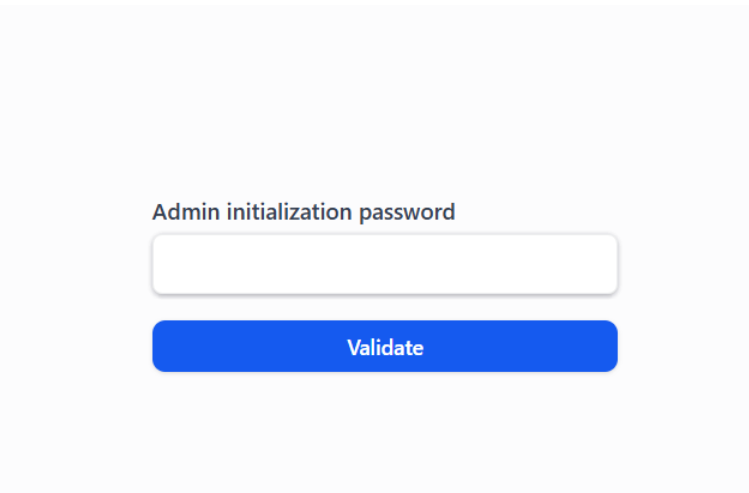
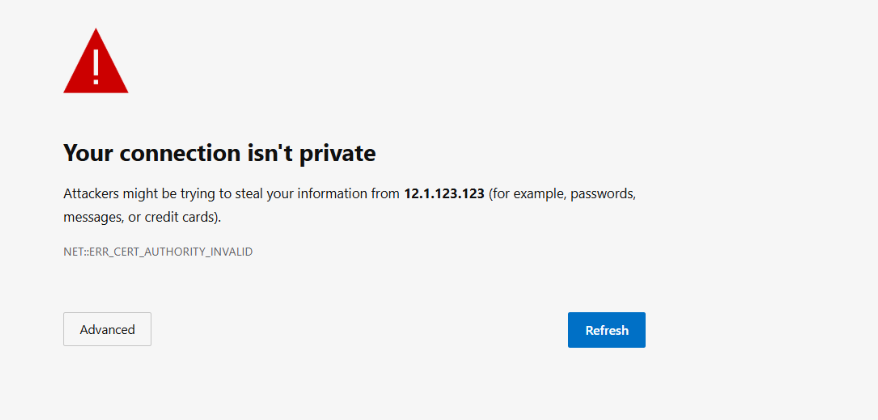
- Get past the SSL warning: Your browser will flag the connection as not private, since a trusted SSL certificate hasn't been issued for the IP yet. Click Advanced, then Proceed to continue.
- Grab Your Init Password
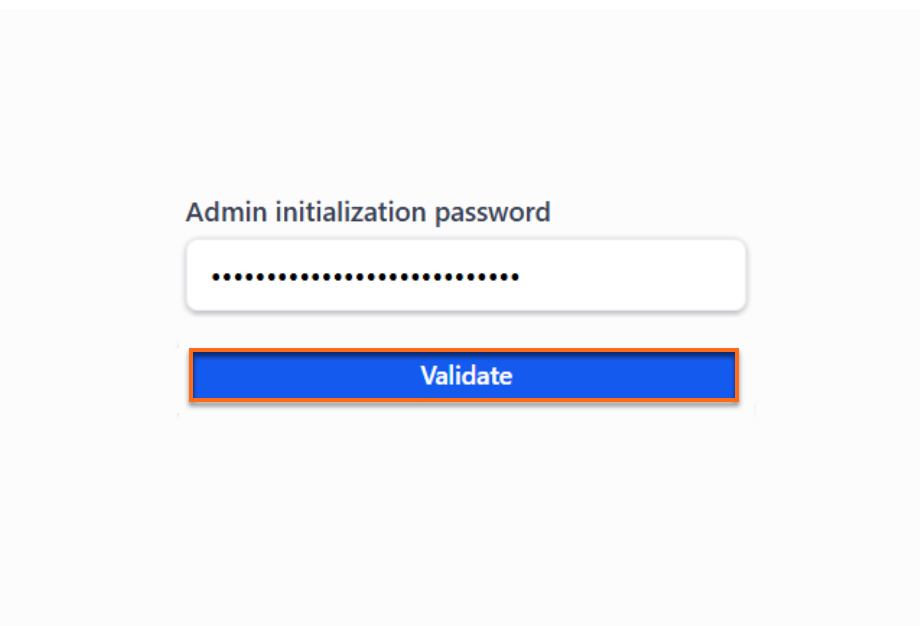
Before you can create an admin account, the wizard asks for an Init password. Go back to your terminal to find it. - Look for the Init password line and copy it.
- Paste it into the init password field on the browser screen, then click Validate.
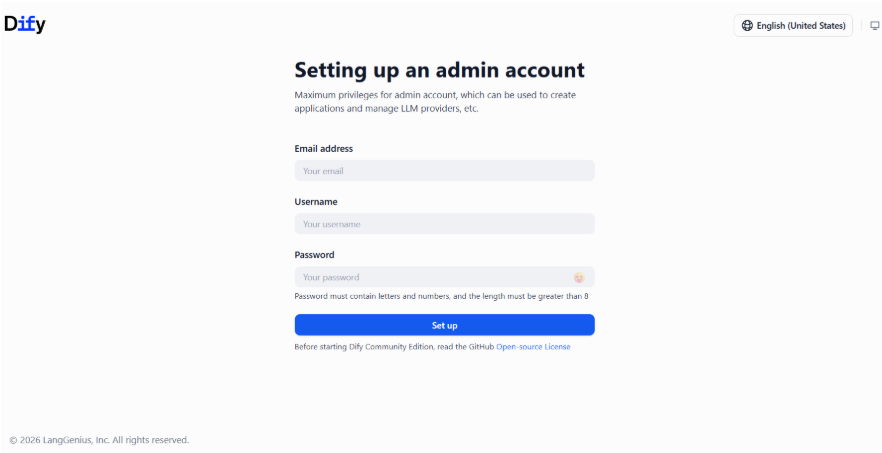
- Set Up Your Administrator Account:
Enter your Email address, Username, and Password, then submit the form. This account automatically becomes the workspace owner, and you'll be sent to the main login screen.
Step 4: Link an AI Model Provider
Dify needs to connect to an AI provider (like OpenAI or Anthropic) before it can run any applications.
Without an LLM backend, Dify can't run applications.
- Log In: Head to
https://12.1.123.12/signinand log in with the administrator email and password you just set up.Replaceyour_server_ipwith your actual server IP address.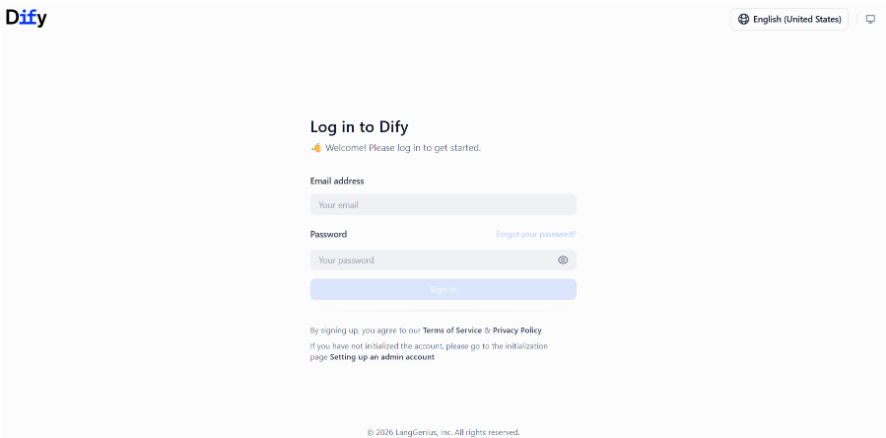
- Connect Your Model Providers:
- Go to Integrations, then click Model Provider.
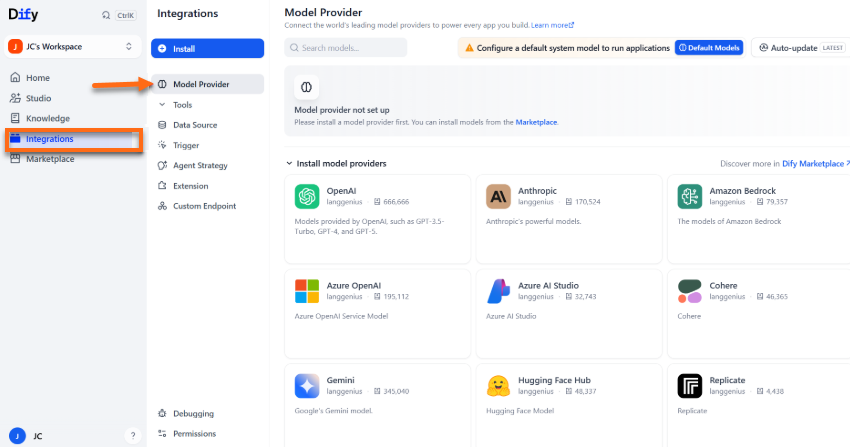
- Pick your preferred AI provider and enter your API key.
Tip: You'll find these keys in your provider's developer console (such as OpenAI Platform or Anthropic Console).
- Go to Integrations, then click Model Provider.
Step 5: Create Your First AI App
With your models connected, you're ready to start building.
- Click Create App on your dashboard.
- Pick the type of application you want to build:
- Chatbot: A conversational assistant that can tap into your internal knowledge bases.
- Agent: An independent assistant that can use tools, run code, and search the web.
- Workflow: A multi-step visual pipeline that connects different AI tasks together.
- Text Generator: A tool built for bulk content creation.
- Drag and drop your components, connect them, and click Publish to take your app live.
Using Your Own SSL Certificate
Prefer your own domain and certificate over the auto-generated one? Follow these steps:
- Copy your certificate file
fullchain.pemand private key fileprivkey.pemto the server. - Overwrite the default files with these commands:
cp /path/to/your/fullchain.pem /opt/dify/docker/nginx/ssl/dify.crtcp /path/to/your/privkey.pem /opt/dify/docker/nginx/ssl/dify.key
- Reload the web server so it picks up the new files (your app stays online the whole time):
cd /opt/dify/docker && docker compose restart nginx
Commands for Managing Dify
Manage your Dify server from the /opt/dify/docker folder with these commands:
Checking Service Status
See at a glance whether every container is running.
Watching Live Logs
Watch what's happening in real time to identify and troubleshoot issues.
View logs for all systems
View logs for just the main API service
Restarting One Service
If one feature is acting up, restart it on its own (for example, the main API):
Stopping and Starting Everything
Take the entire Dify stack offline, or bring it back up, in one step.
Turn off the server
Turn on the server in the background
Keeping Dify Up to Date
Back up your data before you update. Run these commands in order:
1. Stop the server and create a backup file
2. Pull down the latest code
3. Pull the new version images and restart the server
Additional Information and Examples
You can runcat /root/README.md to see more information and useful commands:
Sample Output
root@12-1-111-12:~# cat /root/README.md
# Dify

## Description

Dify is an open-source LLM application development platform that combines AI workflow orchestration, a Retrieval Augmented Generation (RAG) pipeline, agent capabilities, model management, and observability features. It enables developers and non-technical users to rapidly build and operate production-grade generative AI applications - chatbots, copilots, and multi-step AI agents - on top of OpenAI, Anthropic, Azure OpenAI, local models served via Ollama, and dozens of other providers.

This image deploys Dify on Ubuntu 24.04 using the official upstream Docker Compose stack. On first boot, per-deployment secrets are generated automatically, a TLS certificate is provisioned (Let's Encrypt for public IPs, self-signed as fallback), and the full stack is brought up with HTTPS enabled from the start.

## Services

| Service | Ports | Purpose |
|---------|-------|---------|
| Dify Nginx | 80, 443 | Bundled reverse proxy; terminates TLS and routes requests to the web UI and API |
| Dify API | 5001 (internal) | Backend REST API consumed by the web UI and external integrations |
| Dify Worker | internal | Celery background task and queue worker |
| Dify Worker Beat | internal | Celery scheduled-task scheduler |
| Dify API Websocket | internal | WebSocket handler for real-time streaming responses |
| Dify Plugin Daemon | 5003 (internal) | Manages lifecycle of installed Dify plugins |
| Dify Web | 3000 (internal) | Next.js frontend served through the nginx proxy |
| Dify Sandbox | internal | Isolated code execution environment for tool calls |
| PostgreSQL | internal | Primary application database |
| Redis | internal | Cache and Celery broker |
| Weaviate | internal | Default vector database for RAG pipelines |
| SSRF Proxy | 3128 (internal) | Outbound proxy that prevents SSRF attacks in tool calls |
| OpenSSH | 22 | Remote access (UFW rate-limited) |

## How to use

### 1. Wait for the stack to become ready

After the VM first boots, the first-boot script generates secrets, provisions a TLS certificate, and starts all containers. The Dify API runs database migrations on first start, which takes **3 to 8 minutes** depending on server speed. You can watch progress in the first-boot log:

```bash
tail -f /var/log/dify/onboot.log
```

To check that all containers are running:

```bash
cd /opt/dify/docker && docker compose ps
```

All containers should show `Up` or `(healthy)`. The API container is the last to become healthy.

### 2. Open the setup wizard

Navigate to the install page in your browser:

```
https://SERVER_IP/install
```

If the server is on a private or local network a self-signed certificate is used. Accept the browser security warning to proceed.

### 3. Create the administrator account

On the install page, you'll first be prompted for the **init password** - find this in `/root/.app_passwords` under `Init password`. After entering it, enter an email address, display name, and a strong password. The first account you create automatically becomes the workspace owner. After submitting, you are redirected to the sign-in page.

### 4. Sign in and configure a model provider

Log in at `https://SERVER_IP/signin` with the credentials you just created.

Once inside the Dify Studio dashboard, open **Settings -> Model Provider** and add at least one provider API key before creating applications:

```
OpenAI       -> https://platform.openai.com/api-keys
Anthropic    -> https://console.anthropic.com/settings/keys
Azure OpenAI -> Endpoint + API key from Azure portal
Ollama       -> http://127.0.0.1:11434  (if Ollama is running on the same server)
```

No application can run until a model provider is configured.

### 5. Build your first application

From the Dify Studio dashboard, click **Create App**. Choose from:

- **Chatbot** - a single-model conversational app with optional knowledge bases
- **Agent** - an autonomous agent that can call tools, run code, and search the web
- **Workflow** - a visual multi-step pipeline linking models, tools, and data sources
- **Text Generator** - a batch-mode content generation workflow

Drag components onto the canvas, connect their inputs and outputs, and click **Publish** when ready.

### 6. View generated credentials

Per-deployment secrets (INIT_PASSWORD, SECRET_KEY, DB_PASSWORD, REDIS_PASSWORD, plugin keys) and the TLS certificate details are written to:

```bash
cat /root/.app_passwords
```

### 7. Service management

```bash
# Check status of all containers
cd /opt/dify/docker && docker compose ps

# Follow all container logs
cd /opt/dify/docker && docker compose logs -f

# Follow logs for a specific service (api, worker, web, nginx, db, etc.)
cd /opt/dify/docker && docker compose logs -f api

# Restart a single service
cd /opt/dify/docker && docker compose restart api

# Stop the entire stack
cd /opt/dify/docker && docker compose down

# Start the stack
cd /opt/dify/docker && docker compose up -d
```

### 8. Updating Dify

To upgrade to the latest Dify release, always back up your data first, then pull and restart:

```bash
# Back up persistent data
cd /opt/dify/docker && docker compose down
tar czf dify-backup-$(date +%Y%m%d).tgz /opt/dify/docker/volumes /opt/dify/docker/.env

# Pull latest images and restart
cd /opt/dify && git pull origin main
cd docker && docker compose pull && docker compose up -d
```

### 9. Backup and restore

All persistent state lives under `/opt/dify/docker/volumes`:

| Volume subdirectory | Contents |
|---------------------|----------|
| `db/` | PostgreSQL data |
| `redis/` | Redis persistence |
| `weaviate/` | Vector store data |
| `app/storage/` | Uploaded files, model assets |
| `plugin_storage/` | Installed plugin data |

To restore, stop the stack, extract the archive over the same paths, and start again.

### 10. Troubleshooting

| Symptom | Likely cause | Resolution |
|---------|--------------|------------|
| Browser spinner on `/install` | API still running migrations | Wait up to 8 min; check `docker compose logs api` |
| `502 Bad Gateway` | API container crashed | `docker compose restart api`; check `docker compose logs api` |
| Login fails with database error | Migration failure | `docker compose logs db` then `docker compose logs api` |
| Plugin install hangs | Plugin daemon not running | `docker compose restart plugin_daemon` |
| TLS warning in browser | Self-signed certificate | Expected on private/local IPs; replace cert to remove the warning |

## SSL / HTTPS certificate behavior

On first boot, a TLS certificate is provisioned automatically **before** the Dify stack starts so nginx launches with HTTPS enabled from the beginning:

- **Public IP**: a Let's Encrypt certificate is requested via certbot standalone. If issuance succeeds, the browser will show a valid padlock with no warning.
- **Private/local IP** (or if Let's Encrypt fails): a self-signed certificate is generated. The browser will show a security warning; click through it to proceed.

Certificates are stored at `/opt/dify/docker/nginx/ssl/` and mounted into the nginx container. To replace the certificate with one from your own CA or after pointing a domain at the server:

```bash
# Copy your certificate and key into place
cp /path/to/fullchain.pem /opt/dify/docker/nginx/ssl/dify.crt
cp /path/to/privkey.pem   /opt/dify/docker/nginx/ssl/dify.key

# Reload nginx (no stack restart needed)
cd /opt/dify/docker && docker compose restart nginx
```

## Minimum Resources

| Resource | Minimum | Recommended |
|----------|---------|-------------|
| CPU | 2 vCPUs | 4 vCPUs |
| RAM | 4 GB | 8 GB |
| Disk | 20 GB | 40 GB |

> The Dify stack runs 12 containers simultaneously. On VMs with fewer than 4 vCPUs, database migrations on first boot may take up to 8 minutes as all services compete for CPU time.

## Image contents

This image installs and configures:

- Dify (latest) cloned to `/opt/dify` from the official GitHub repository
- Docker CE with the full Dify Docker Compose stack pre-pulled at build time
- certbot in a Python virtualenv at `/opt/certbot` for TLS provisioning
- UFW firewall with ports 22, 80, and 443 open; all other ports blocked
- Log rotation at `/etc/logrotate.d/dify`
- This README at `/root/README.md`

## Security hardening

| Hardening | Detail |
|-----------|--------|
| UFW firewall | Only ports 22 (SSH), 80 (HTTP redirect), and 443 (HTTPS) open by default |
| HTTPS by default | TLS enabled from first boot; HTTP redirects to HTTPS |
| SSH rate limiting | UFW limits repeated SSH connection attempts |
| Per-deployment secrets | SECRET_KEY, DB_PASSWORD, REDIS_PASSWORD, and plugin keys are randomly generated on first boot |
| Credentials file | `/root/.app_passwords` created with mode 0600 (root-only) |
| Internal services | All Dify services except nginx are bound to Docker's internal network and not reachable externally |

## Configuration files reference

| File / Directory | Purpose |
|------------------|---------|
| `/opt/dify/docker/.env` | Main Dify environment configuration (secrets, URLs, feature flags) |
| `/opt/dify/docker/docker-compose.yaml` | Docker Compose service definitions |
| `/opt/dify/docker/nginx/ssl/dify.crt` | TLS certificate served by the nginx container |
| `/opt/dify/docker/nginx/ssl/dify.key` | TLS private key |
| `/opt/dify/docker/volumes/` | All persistent data (database, storage, vector store) |
| `/root/.app_passwords` | Generated secrets and access URLs (mode 0600) |
| `/var/log/dify/onboot.log` | First-boot provisioning log |
| `/etc/logrotate.d/dify` | Log rotation configuration |

## Links

- Manage: [https://SERVER_IP/install](https://SERVER_IP/install)
- Documentation: [https://docs.dify.ai](https://docs.dify.ai)
- Install Guide: [https://docs.dify.ai/en/getting-started/install-self-hosted/docker-compose](https://docs.dify.ai/en/getting-started/install-self-hosted/docker-compose)
- Source: [https://github.com/langgenius/dify](https://github.com/langgenius/dify)