Purchase a HostGator Self-Managed VPS with GatorClaw Installation
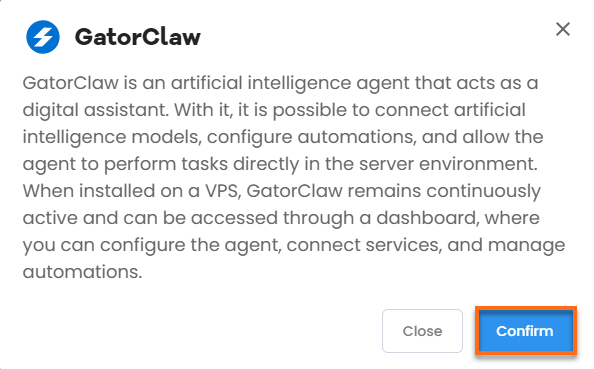
GatorClaw is an AI-powered digital assistant built to run right on your server. It connects to AI models, lets you configure automations, and gives the agent the ability to carry out tasks directly within your server environment. Once installed on a VPS, GatorClaw stays active around the clock, and you can reach it anytime through a dashboard where you configure the agent, connect services, and manage your automations.
This guide walks you through the purchase process and installation, so you can get a HostGator Self-Managed VPS running with GatorClaw pre-installed and ready to use.
Key Benefits of GatorClaw
As the volume of data involved in research and day-to-day operations keeps growing, having software that can automate collection and analysis stops being optional. GatorClaw takes that work off your hands, cutting down on human error, speeding up your processes, and surfacing insights faster than doing it manually ever could.
What You Can Do With GatorClaw
GatorClaw fits into a wide range of domains, including:
- Field Research: Collect environmental or experimental data through connected devices or manual entry.
- Data Analytics: Process and visualize large datasets to spot patterns or anomalies.
- Academic Studies: Run scientific experiments while recording data with precision.
- Enterprise Monitoring: Keep a continuous eye on the vital statistics of your organization's operations.
- Custom Data Solutions: Build workflows tailored to how your organization actually handles data.
However your work involves data, GatorClaw can help you gather it, process it, and act on it faster.
How to Purchase a Self-Managed VPS with GatorClaw Installation
To use GatorClaw on HostGator, you first need to buy a Self-Managed VPS plan. Here is how to do it:

Not sure which VPS setup is right for you? That's exactly what Pre-configured Setup is for. You'll find this option near the top of the HostGator Self-Managed VPS purchase page, and it takes the guesswork out of getting started. Just tell us what you're building—a WordPress Site, an AI Agent/Claude Code project, a Dev/Staging environment, or an eCommerce Store—and we'll automatically select the right plan, operating system, and template to match.
- Great option if you're new to VPS or want a fast, easy setup
- Get the recommended configuration for your project right away
- No need to figure out the technical details yourself
- Full flexibility to adjust settings later on
- Open https://www.hostgator.com/vps-hosting in your browser.
- Pick the plan you want and click Choose Plan.
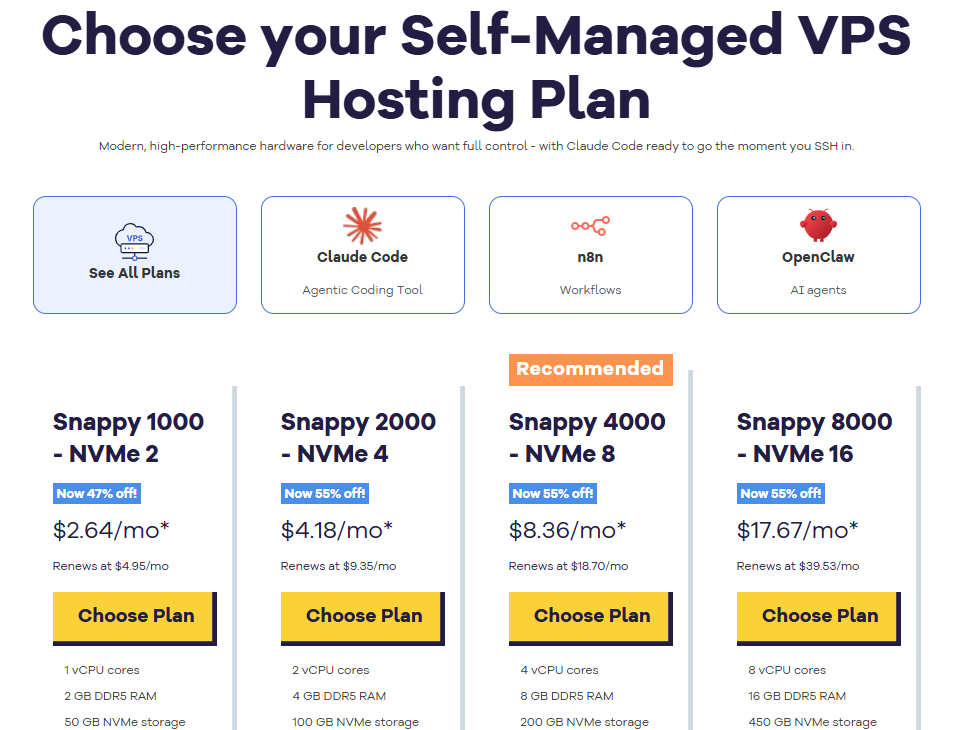
Important: Pricing is subject to change—please visit https://www.hostgator.com/vps-hosting for the current introductory/sign-up offer for HostGator VPS Hosting. For the most up-to-date renewal pricing, visit your HostGator Customer Portal Renewal Center.
- Pick a Data Center location.
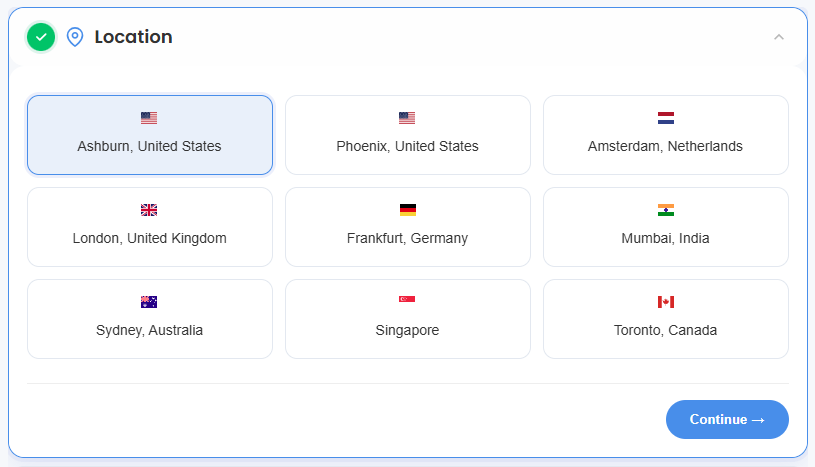
- On the Cart page, you can set up your server the way you want:
- Hardware:
- Pre-selected:
You can change to a different Self-Managed VPS plan here.
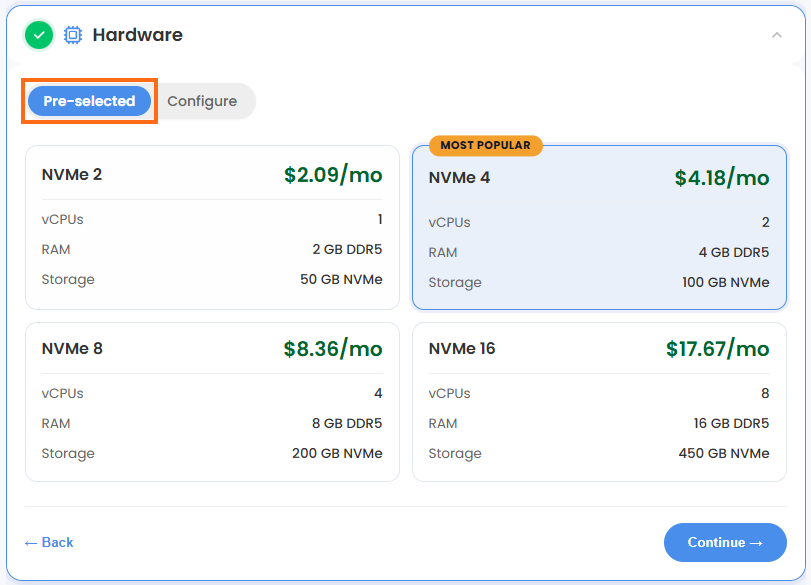
- Configure:
Click Configure if you want to build your own custom package.
Note: Any changes you make here will change the total price.
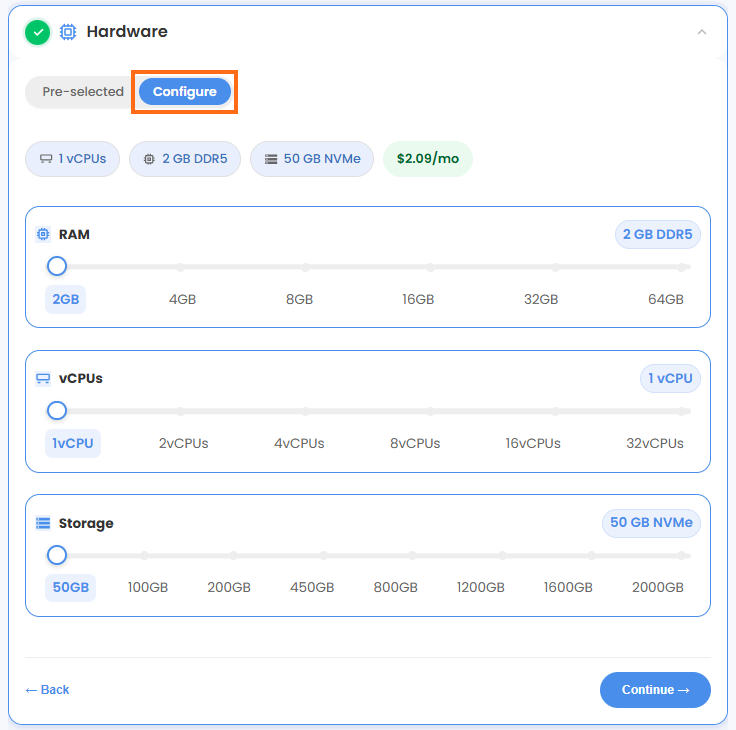
- Pre-selected:
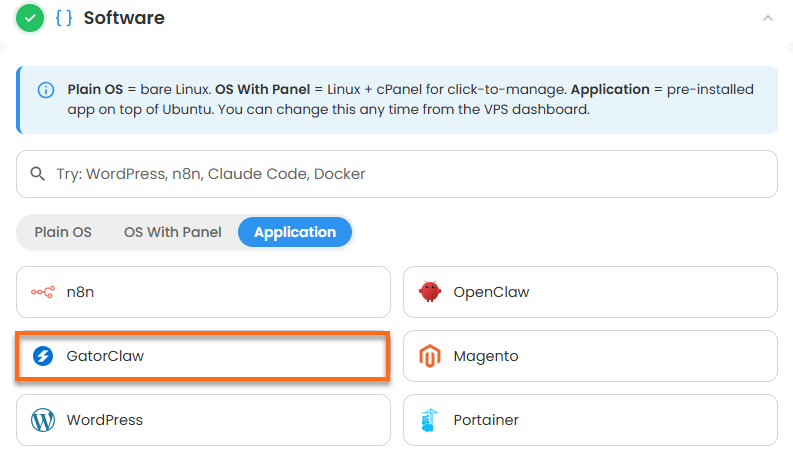
- Software:
If the selected plan does not meet the app's minimum requirements, the app will be grayed out.
- Click the Application tab.
- Choose GatorClaw.
- In the pop-up, click Confirm.
- Hardware:
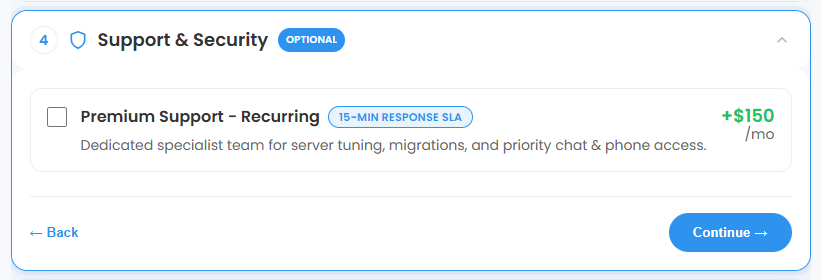
- Support & Security:
You can add Premium Support here for faster help and quicker replies. This is Optional.
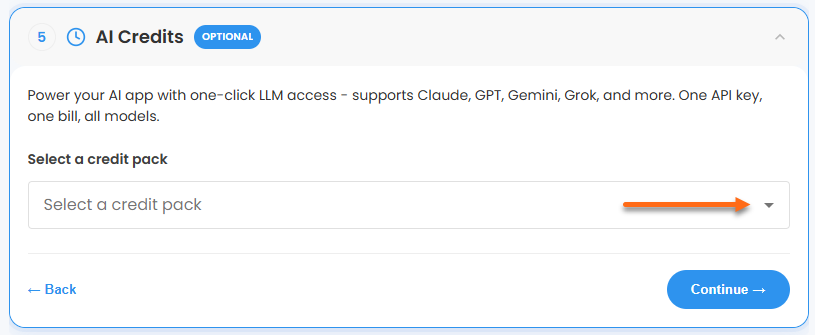
- AI Credits:
Add a HostGator AI Credits package to connect your application to top LLM providers through one API key and a single bill. This step is optional.
- In Advanced options, you can set these up if you want:
- Extra IPs: Add more IP addresses for an extra cost. The price changes based on how many you add.
- Hostname: Give your server a custom name. This is optional.
- SSH Key: If you want to log in without a password, add your SSH public key here. This is optional.
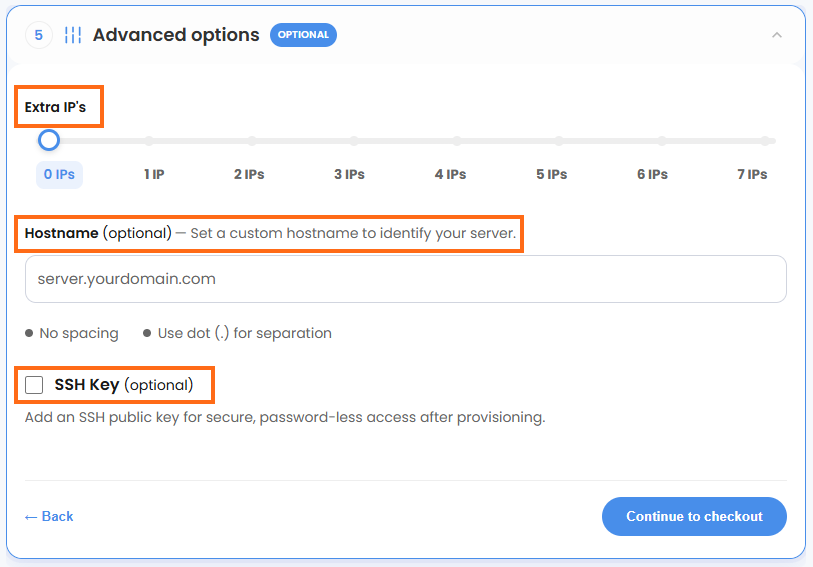
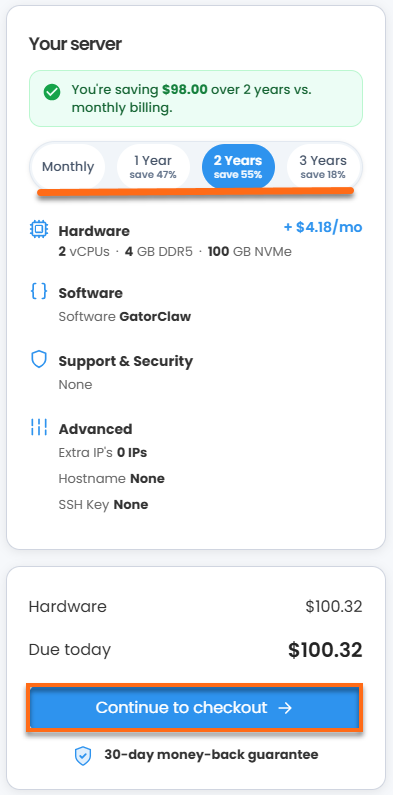
- Choose a billing term, check your Order Summary, then click Continue to Checkout.
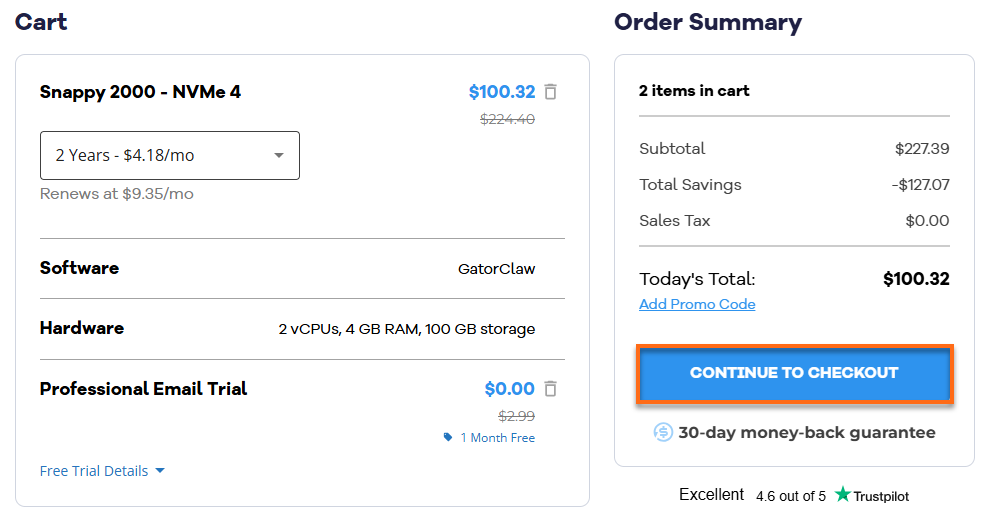
- Check your HostGator cart. Remove any add-ons you don't want, then click Continue to Checkout again.
- On the Checkout page, do the following:
If you are new to HostGator:
- Fill in your billing information and contact details. If you don't want marketing emails, uncheck the box at the bottom.
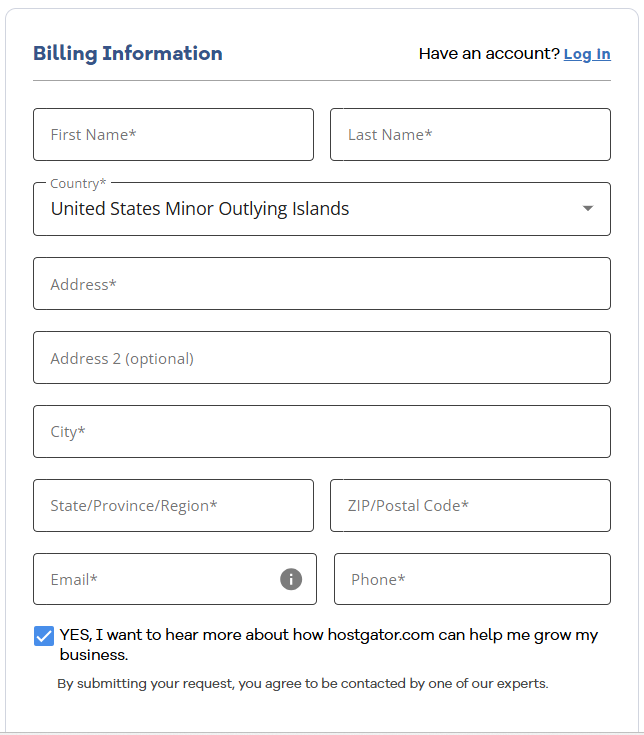
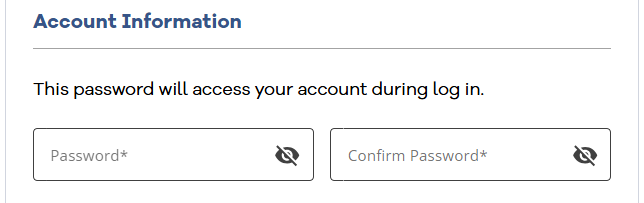
- Create a password for your account.
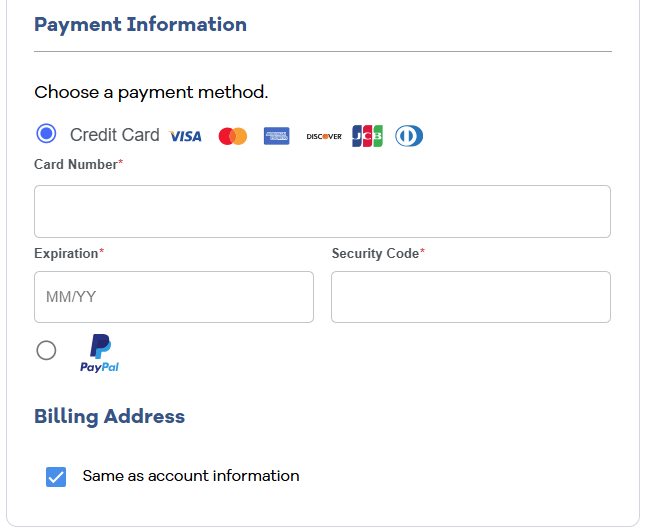
- Choose how you want to pay—Credit Card or PayPal—and enter your payment details.
If you already have an account, your HostGator login details will show up once you log in to your Customer Portal. If you are not logged in, click Log In.
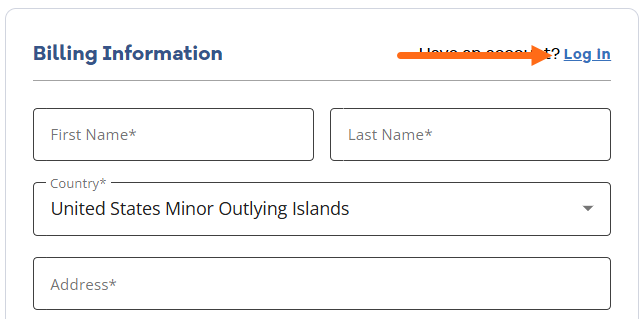
- Fill in your billing information and contact details. If you don't want marketing emails, uncheck the box at the bottom.
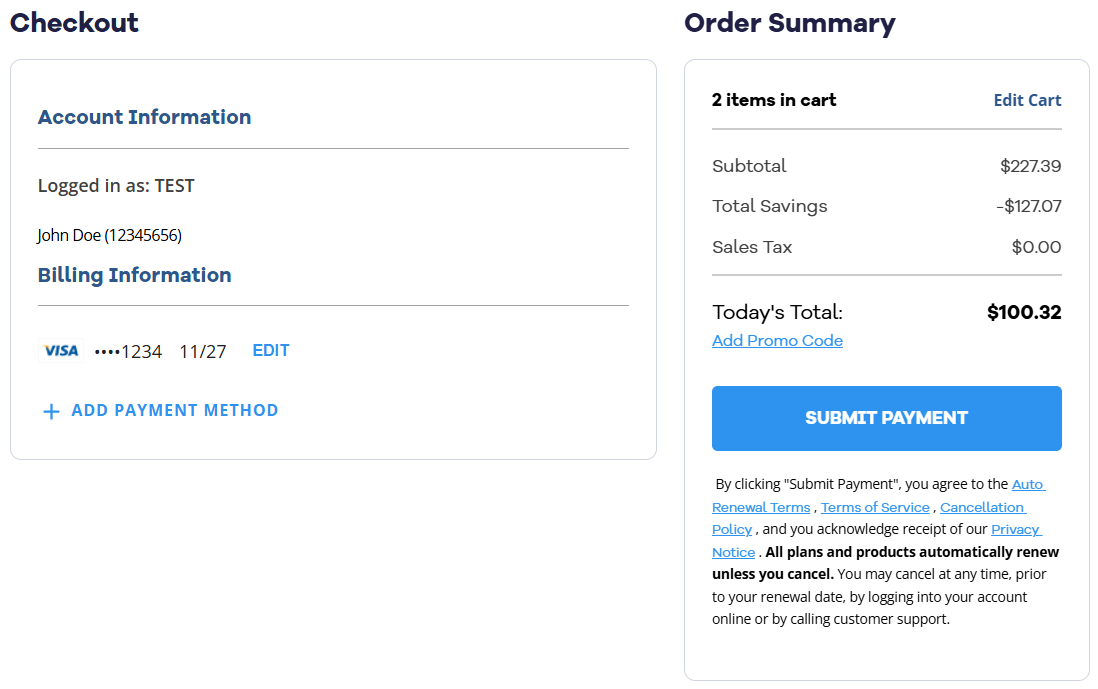
- Review your payment method and order total. If you have a promo code, click Add Promo Code and enter your code. If you need to make changes, click Edit or Add Payment Method. When everything looks correct, click Submit Payment to complete your purchase. By clicking Submit Payment, you agree to the Auto Renewal Terms, Terms of Service, Cancellation Policy, and Privacy Notice.
After checkout, your Self-Managed VPS will begin setting up. Once it's ready, you can find it under the Hosting tab in your Customer Portal.
Setting Up GatorClaw
This guide walks you through finishing your GatorClaw setup and getting comfortable managing your new AI assistant.
Opening Your Setup Dashboard
To finish installing, open a browser and head to the setup page using your server's IP address:
- Log In via Your Browser:
Replace
your-server-ipwith your actual server IP address.http://your-server-ip:47716/setupImportant!Use
https://and include the trailing slash after your panel path. - Get Past the Browser Security Warning
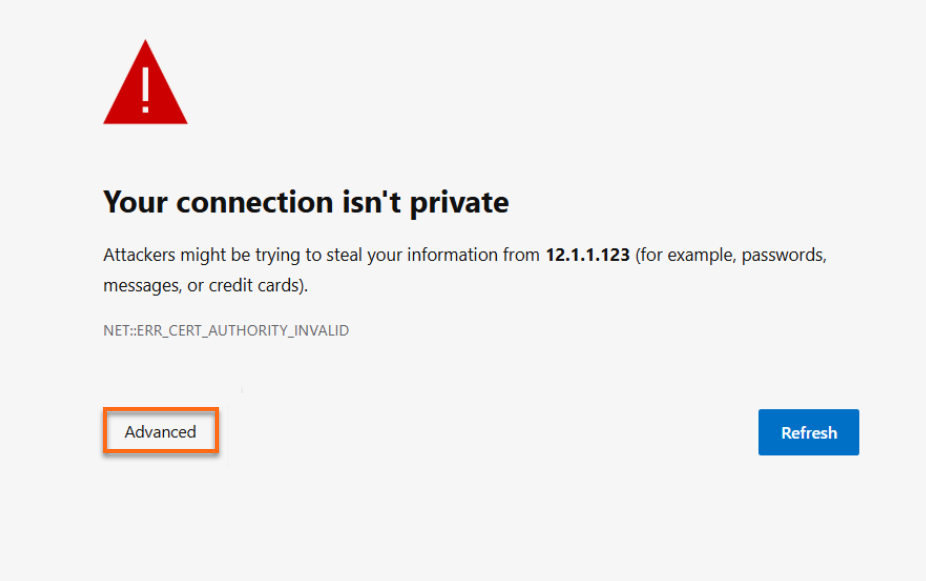
GatorClaw runs on a temporary, self-signed SSL certificate, so your browser will flag it. Click Advanced, then Proceed/Continue to move past it safely.
- Once you're past that:
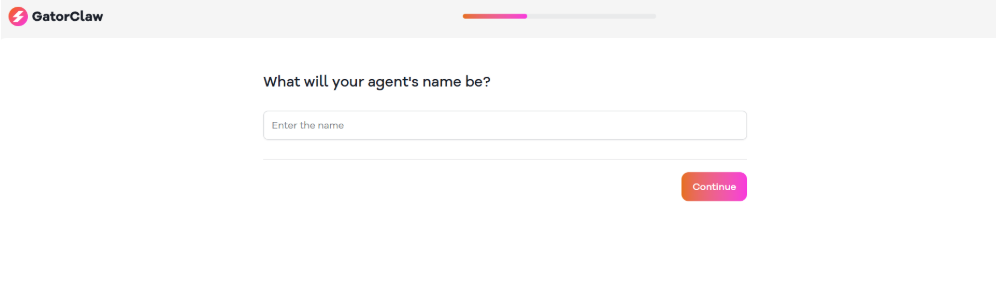
You'll land on the GatorClaw setup page:
Your server's built-in firewall (UFW) keeps your connections locked down. By default, GatorClaw talks over port 47716 for the WebUI and port 22 for SSH access.
Setting Up Your Agent
Work through the setup wizard's prompts to:
- Connect the AI models you want to use.
- Set up your automation workflows.
- Give the agent permission to run tasks directly on your server.
Once you're done, GatorClaw keeps running in the background, ready whenever you need it.
Check System Status
Want to double-check everything's healthy from the command line? SSH into your server on port 22 and check GatorClaw's status.
- Check GatorClaw application status:
gatorclaw health
- Check the process manager status:
GatorClaw relies on PM2 to keep its processes running continuously. Check on it with:
Example Output:pm2 statusroot@server-123456:~# pm2 status ┌────┬────────────────────┬──────────┬──────┬───────────┬──────────┬──────────┐ │ id │ name │ mode │ ↺ │ status │ cpu │ memory │ ├────┼────────────────────┼──────────┼──────┼───────────┼──────────┼──────────┤ │ 0 │ devclaw │ fork │ 0 │ online │ 0% │ 35.1mb │ └────┴────────────────────┴──────────┴──────┴───────────┴──────────┴──────────┘ root@server-123456:~#
Helpful Commands & Quick Reference
Need to inspect or manage the application data directly? All the core files live on your server at:
Whenever you need to check on the system, view logs, or restart something, connect over SSH (port 22) and use these commands:
- Monitor Live Logs:
Watch real-time logs to troubleshoot an issue:
Example Output:pm2 logs devclawroot@server-123456:~# pm2 logs devclaw [TAILING] Tailing last 15 lines for [devclaw] process (change the value with --lines option) /opt/devclaw/logs/error.log last 15 lines: /opt/devclaw/logs/out.log last 15 lines: 0|devclaw | 2026-05-04T19:39:54: │ Open: http://10.0.2.15:47716/setup │ 0|devclaw | 2026-05-04T19:39:54: ╰──────────────────────────────────────────────╯ 0|devclaw | 2026-05-04T19:39:54: 0|devclaw | 2026-05-04T19:39:54: time=2026-05-04T19:39:54.715Z level=INFO msg="web UI starting" component=webui address=:47716 0|devclaw | 2026-06-25T21:21:19: 0|devclaw | 2026-06-25T21:21:19: ╭──────────────────────────────────────────────╮ 0|devclaw | 2026-06-25T21:21:19: │ 🐊 GatorClaw — First Run Setup │ 0|devclaw | 2026-06-25T21:21:19: │ │ 0|devclaw | 2026-06-25T21:21:19: │ No config.yaml found. │ 0|devclaw | 2026-06-25T21:21:19: │ Starting web setup wizard... │ 0|devclaw | 2026-06-25T21:21:19: │ │ 0|devclaw | 2026-06-25T21:21:19: │ Open: http://12.3.456.789:47716/setup │ 0|devclaw | 2026-06-25T21:21:19: ╰──────────────────────────────────────────────╯ 0|devclaw | 2026-06-25T21:21:19: 0|devclaw | 2026-06-25T21:21:19: time=2026-06-25T21:21:19.272Z level=INFO msg="web UI starting" component=webui address=:47716 - Restart the Agent:
Reboot the background application after making a configuration change:
Example Output:pm2 restart devclawroot@server-123456:~# pm2 restart devclaw Use --update-env to update environment variables [PM2] Applying action restartProcessId on app [devclaw](ids: [ 0 ]) [PM2] [devclaw](0) ✓ ┌────┬────────────────────┬──────────┬──────┬───────────┬──────────┬──────────┐ │ id │ name │ mode │ ↺ │ status │ cpu │ memory │ ├────┼────────────────────┼──────────┼──────┼───────────┼──────────┼──────────┤ │ 0 │ devclaw │ fork │ 1 │ online │ 0% │ 28.1mb │ └────┴────────────────────┴──────────┴──────┴───────────┴──────────┘ root@server-123456:~#
Additional Information and Examples
Run cat /root/README.md on your server for a full rundown of commands and reference details:
Last login: Thu Jun 25 22:57:54 2026 from 123.45.567.890
root@server-123456:~# cat /root/README.md
# GatorClaw

## Description

GatorClaw is an artificial intelligence agent that acts as a digital
assistant.  With it, it is possible to connect artificial intelligence
models, configure automations, and allow the agent to perform tasks
directly in the server environment.  When installed on a VPS,
GatorClaw remains continuously active and can be accessed through a
dashboard, where you can configure the agent, connect services, and
manage automations.

The image prepares `/opt/gatorclaw`, downloads the current release
bundle and installer, runs the non-interactive installation, validates
that the WebUI setup endpoint is reachable, and exposes the default
GatorClaw port.


## Services

Service         | Ports | Purpose
----------------|-------|---------
GatorClaw WebUI | 47716 | Provides a browser based interface to setup and maintain GatorClaw
OpenSSH         | 22    | SSH

Ports are protected using ufw.


## How-to-use

After the instance boots, access the initial setup page at:

`http://server-ip:47716/setup`

Useful operational commands:

* `gatorclaw health`
* `pm2 status`
* `pm2 logs devclaw`
* `pm2 restart devclaw`

Application files are stored under `/opt/gatorclaw`.


## Links

Repository: [`LATAMD/repos/ansible-app-installer/ubuntu/roles/gatorclaw`](https://stash.newfold.com/projects/LATAMD/repos/ansible-app-installer/browse/ubuntu/roles/gatorclaw)

Manage: [http://{server_ip}:47716](http://{server_ip}:47716)root@server-650882:~#